
Organization Profile
Find your way around Configure Settings and set your organization's name, domain, logo, timezone and profile.
On this page
Organization Profile is the first page in Configure Settings. Use it to set your organization's identity: name, domain, logo, timezone and profile. This page also explains how the Settings area is laid out, so you can find the other settings pages from here.
Opening Configure Settings#
- In the left sidebar, click Configure Settings (the gear near the bottom).
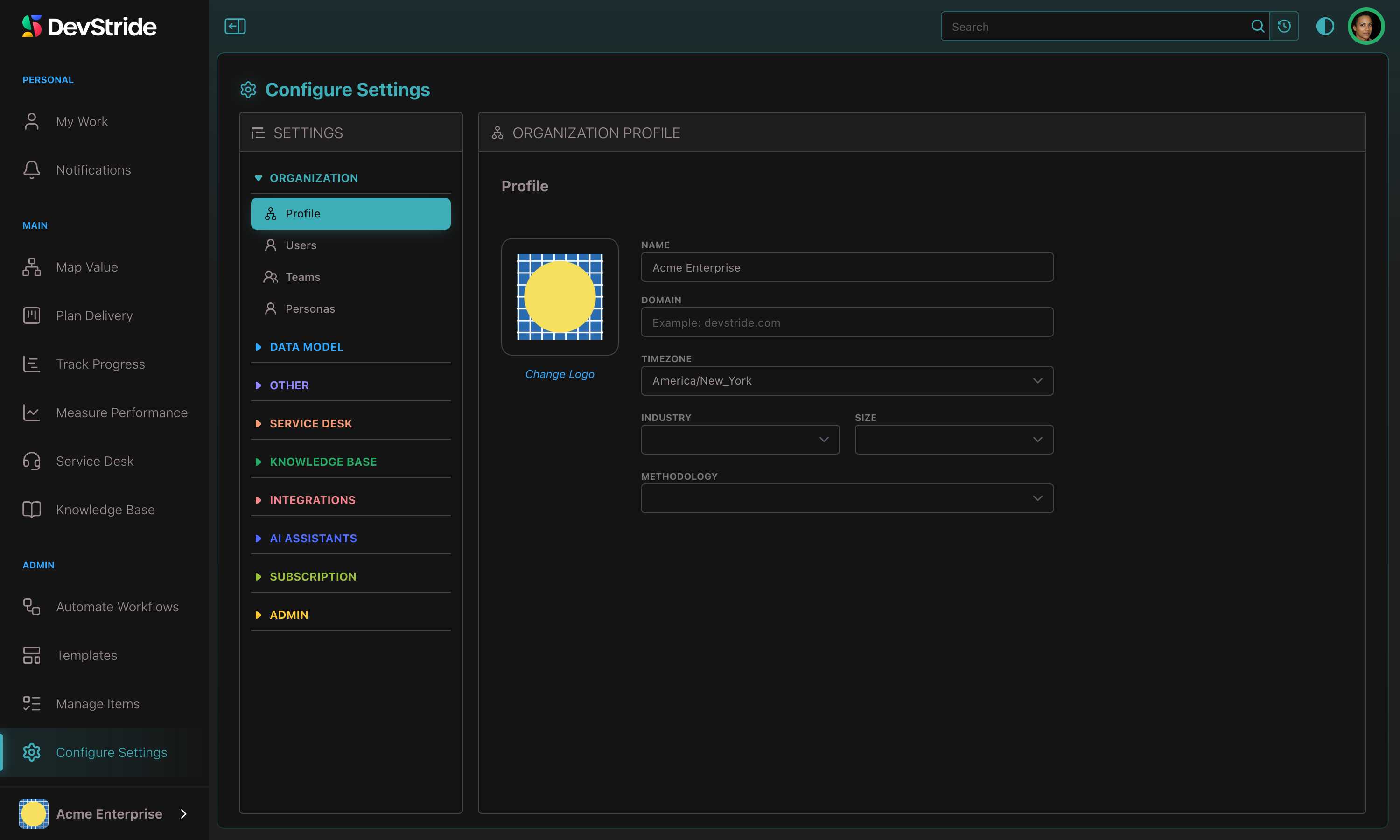
- Settings opens on Organization → Profile (its page heading reads Organization Profile).
Who sees Configure Settings
The gear appears only for roles that hold Access Settings; each page inside is then gated by its own permission (Profile needs Manage org configuration, Users needs Manage users, and so on). Entries you are not allowed to open are simply hidden from the Settings navigation, and a direct link to a page you cannot open sends you back to My Account. The default Owner and Admin roles hold everything; see Roles & Permissions to grant individual settings pages to a custom role.
Finding your way around Settings#
The left-hand navigation groups settings under collapsible headers. Opening one group closes the others, and the group that contains the page you are on expands by itself.
| Group | Pages |
|---|---|
| Organization | Profile, Users, Teams, Personas (once personas are enabled for your organization) |
| Data Model | Item Types, Priority Levels, Item Statuses, Subtask Statuses, Tags, Custom Fields, Effort Point Estimation and Time Estimation, Workspace Tab Order and Sidebar Field Order |
| Other | Cadences, Import History |
| Service Desk | Service Desk, Request Forms, Single sign-on, SLA Policies, Schedules — see Service Desk |
| Inbound addresses, Sending domains | |
| Knowledge Base | Stages — see Spec stages |
| Integrations | Credentials, GitHub, Slack, Microsoft Teams, Database Access, Identity Providers, Webhooks, Jira, Formwork and Azure DevOps where available |
| AI Assistants | Settings, Connect AI, Usage, Budgets, Prices — see AI Assistant settings and permissions |
| Subscription | Your Plan, Billing Details, Payment Method, Billing History — see Subscription & Billing |
| Admin | Global Automations, Formatting Rules, Time Tracking, Permissions, Training Sandboxes, Authentication Log |
Editing your organization's profile#
Everything on the Profile panel saves as you go; there is no Save button. Text fields save when you click away, and the logo and dropdowns save the moment you change them. A green Updated mark confirms a stored change.
| Field | What to enter |
|---|---|
| Logo | Click the logo placeholder and choose an image. It saves as soon as you pick it. Once a logo is set, click the logo itself (or Change Logo under it) to replace it. |
| Name | Your organization's display name. |
| Domain | Your web domain, for example devstride.com. Anything that is not a valid domain shows Invalid and is not saved. |
| Timezone | The timezone your organization operates in. Type to search the list. Monthly time-tracking periods and dates shown in Settings use it, and so does DevStride's idea of "today": which cycle or sprint is current, trial days left, overdue invoices, dates that default to today, the completed-date filter and the AI Assistant's "today" all change over at midnight in this timezone, not at midnight UTC or in each person's browser. Scheduled automations fire at the hours you pick in this timezone. |
| Industry | One or more industries. |
| Size | Employee count: 1-9, 10-49, 50-99, 100-499 or 500+. |
| Methodology | One or more of Scrum, Kanban, Agile, Scaled Agile, Continuous, Extreme Programming, Waterfall, Lean, SAFe, Other. |
Looking for the workflow automation switches?
The organization-wide checkboxes that keep items in sync (Sync work item dates with their cycles, Automate New/Done, Enable Link Mode and Child items inherit their parent's sprint and team) have their own page: Global Automations, under Configure Settings → Admin.
Managing personas#
Personas (Engineer, QA Analyst, and so on) describe the kind of work a person can take; they are separate from access roles and grant no permissions. The catalog lives at Configure Settings → Organization → Personas and personas are given to people from Users. The full walkthrough is on Personas; assigning them to members is covered in Giving a member personas.
Requiring multi-factor authentication#
There is no switch on this page to require MFA for every member. The organization setting exists (requireMultiFactorAuth on the organization record) but is set through the API or by DevStride support rather than in Settings. When it is on, members cannot sign in with Google, Microsoft or Enterprise SSO, because those sign-ins bypass DevStride's MFA challenge — see Users, Roles & MFA. Individual members turn on their own MFA from My Account → User Profile.
Where to go next#
- Invite people and set their roles on Users, then group them on Teams.
- Shape your work model under Data Model, starting with Item Types.
- Connect tools under Integrations and review your plan under Subscription.