
Explore the Workspace
Orientation to the item workspace: what the drawer header shows, how to rename, link, move, watch and retype an item, and where the detailed tour continues.
Click any item's number or title and its workspace (the item drawer) opens. This page orients you in the header; the detailed tour of each tab continues in The Item Workspace Tour.
To change how the whole app looks, see Themes & Appearance. If you get stuck, Getting Help & Support covers how to reach the DevStride team.
The header#
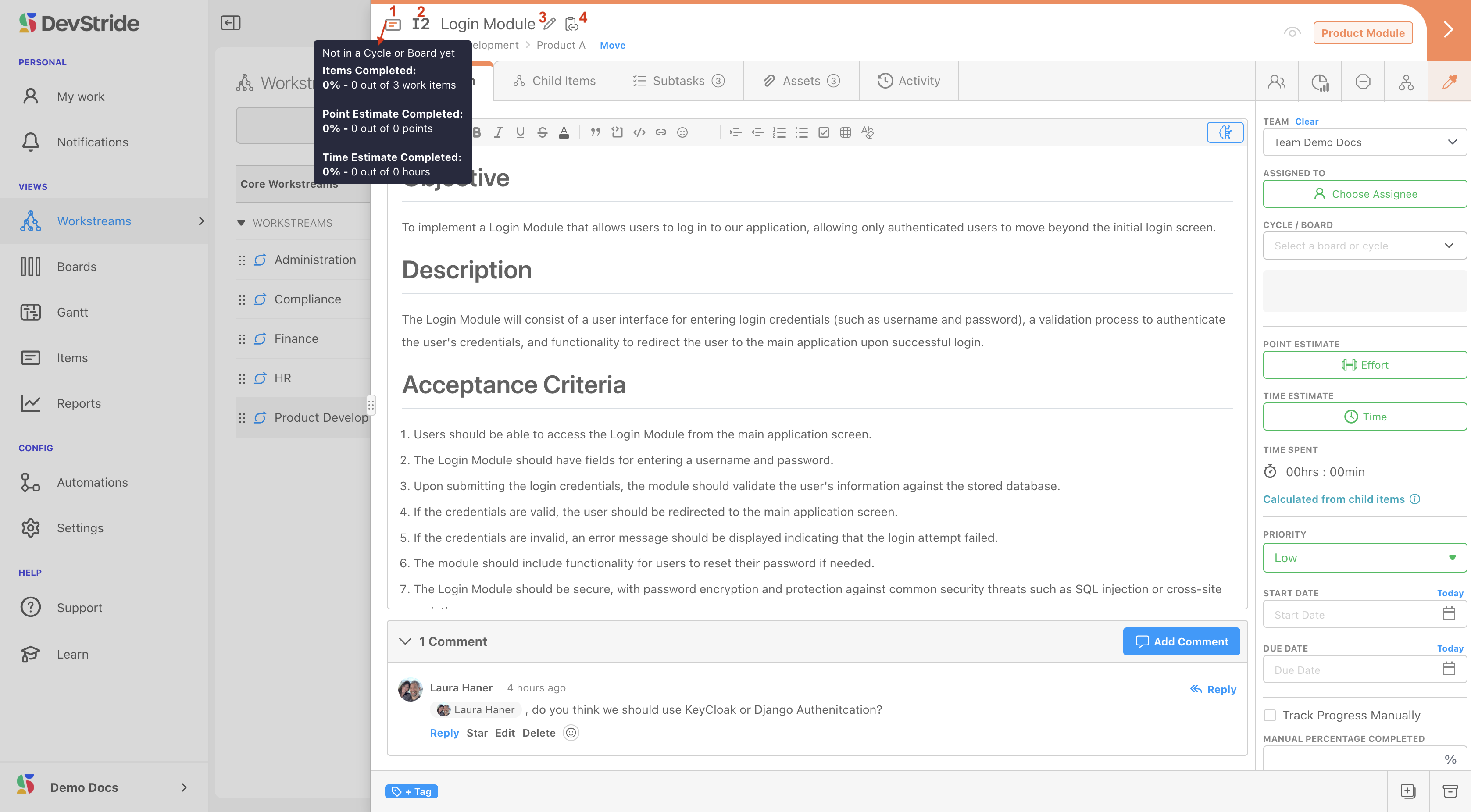
| Element | What to do with it |
|---|---|
| Item card (1) | Shows completion stats for the item and its children. |
| Item number (2) | DevStride's permanent identifier, starting with I. Type it in the search at the top of the screen to jump to the item, or use it in comments. |
| Item name (3) | Click the pencil to rename. The new name shows everywhere at once. |
| Copy item link (4) | Copies a link that opens this item for any signed-in user. Pasted into Teams, Outlook, Slack, a document or another item, it reads as the item's name and number; in a plain-text field it is the bare URL. The right-click Copy ▸ Link does the same. |
Breadcrumb and Move#
The breadcrumb under the title shows where the item sits in the workstream hierarchy. Click any crumb to go there.
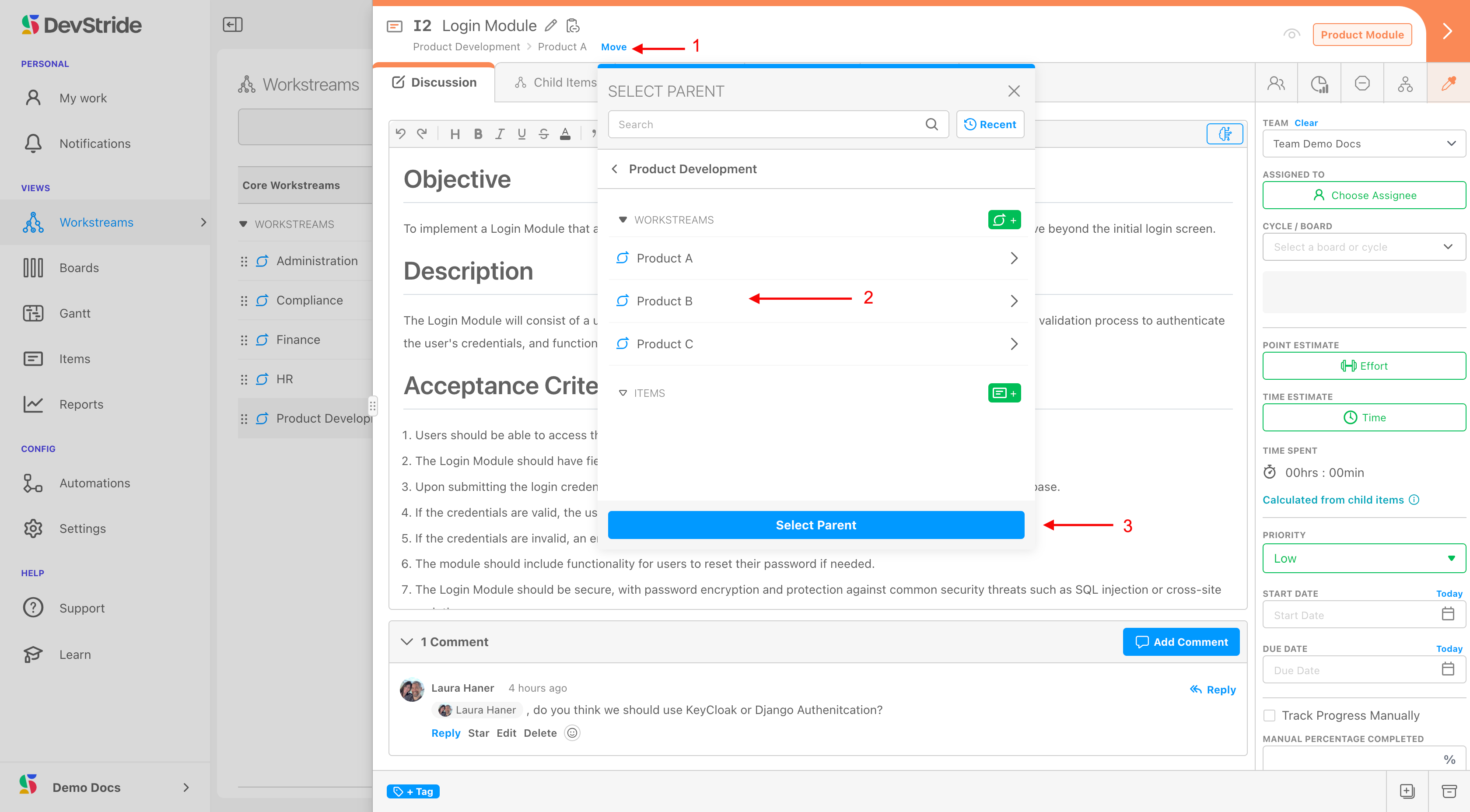
To move the item, click Move (1), choose the destination in the picker (2), and click Select Parent (3). The item and everything beneath it moves; only parents whose type permits this item are allowed.
Watch#
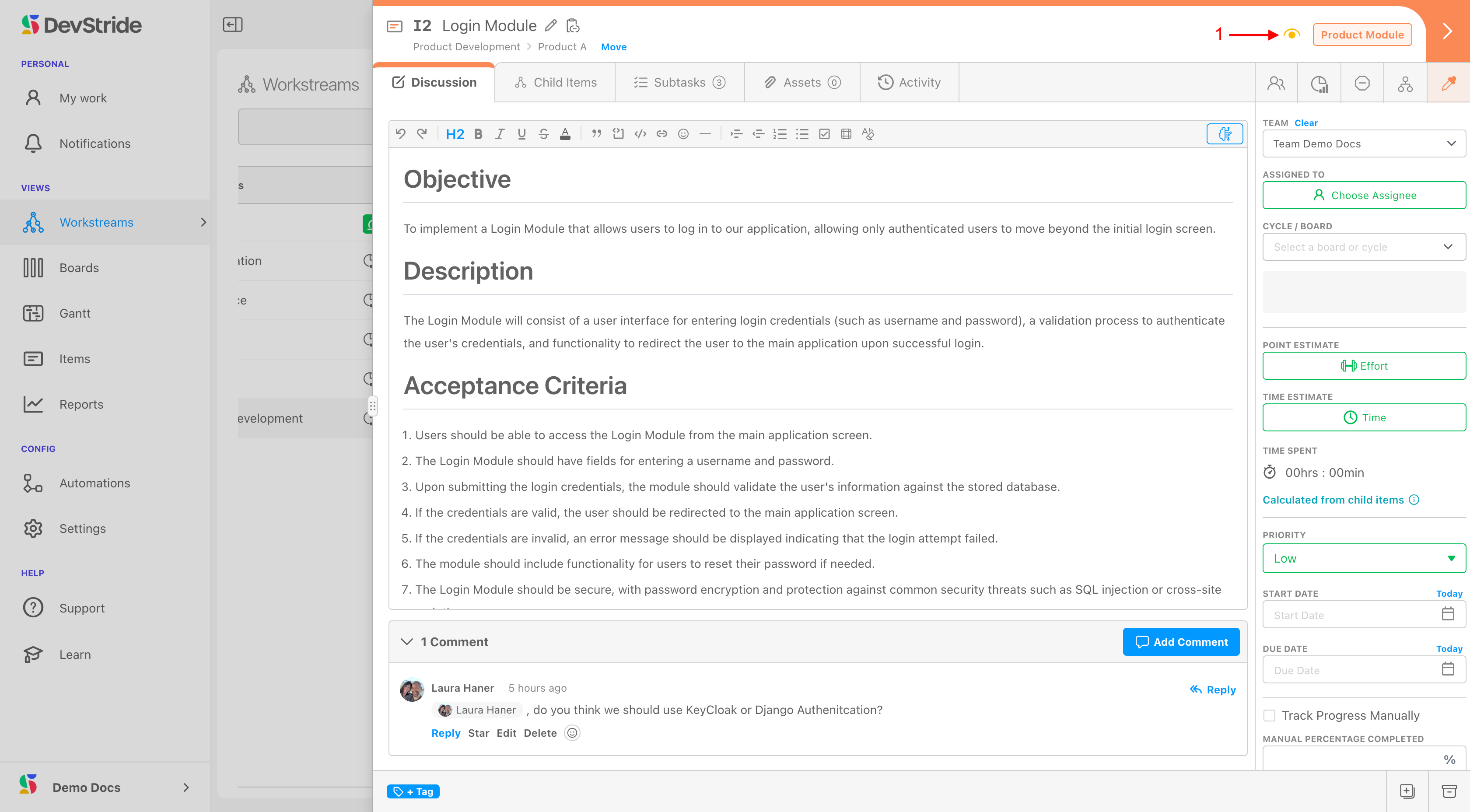
Click Watch to follow the item: you are notified of changes and comments. The button reads Watching when you follow it; click again to stop. The watchers control beside it shows who else is watching and lets you add or remove watchers (Update Watchers).
Item type label#
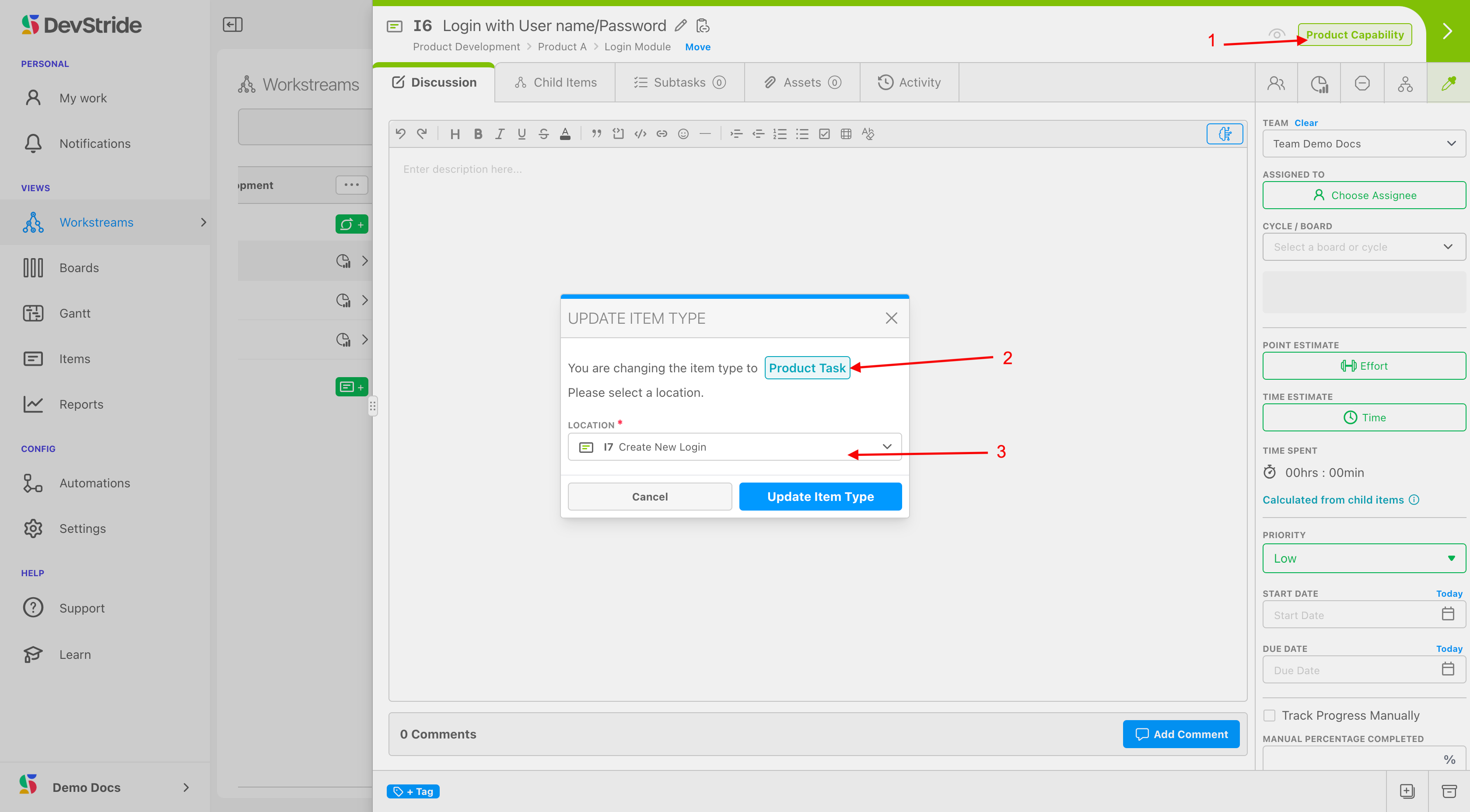
The label at the far right shows the item type. Click it to change the type. If the item's children would not fit under the new type, a dialog suggests new types for them and converts the item and its children together, after showing what the change costs. See Changing an item's type.
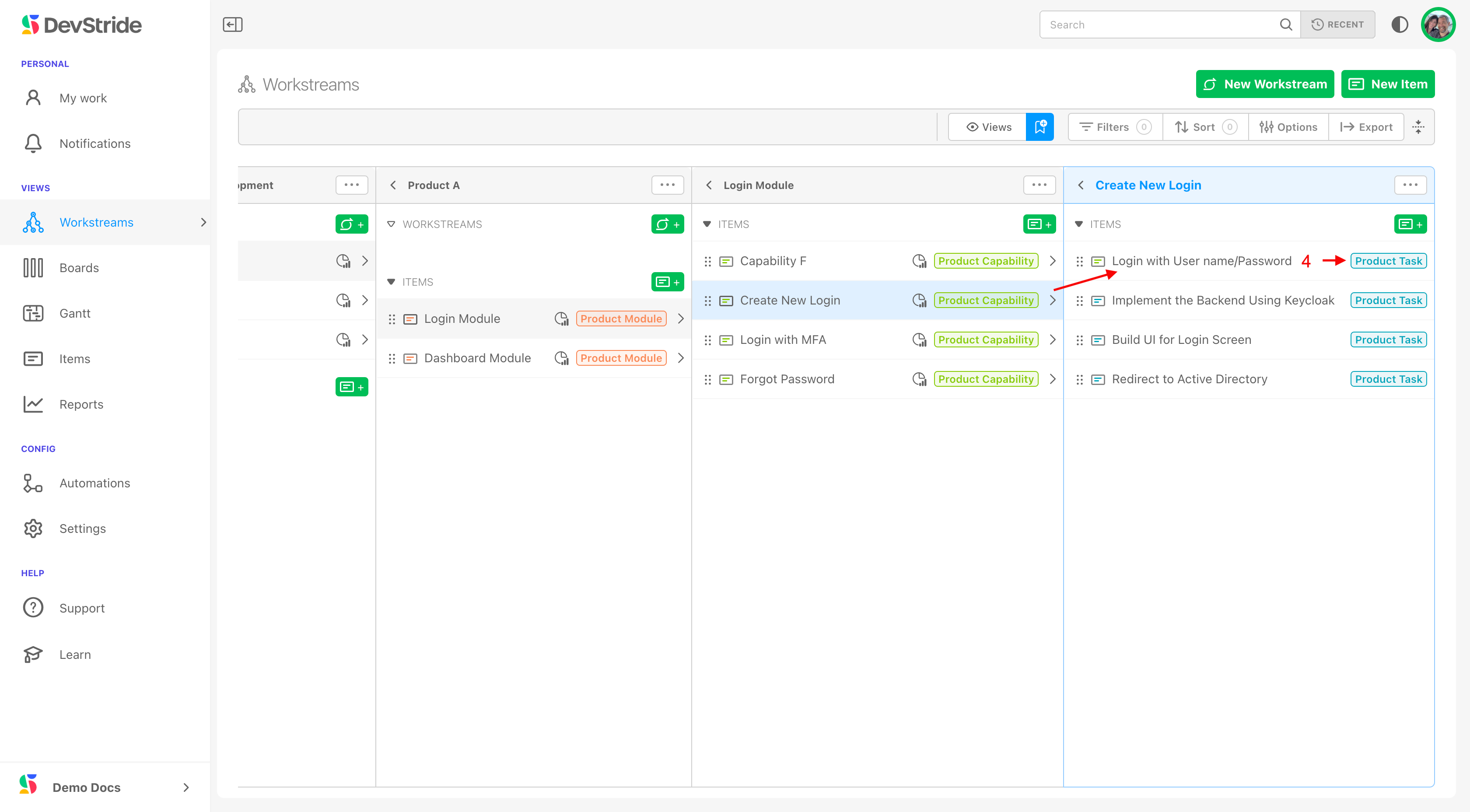
In the example below, a Capability (1) becomes a Task: pick the new type (2) and the new location (3), then confirm.
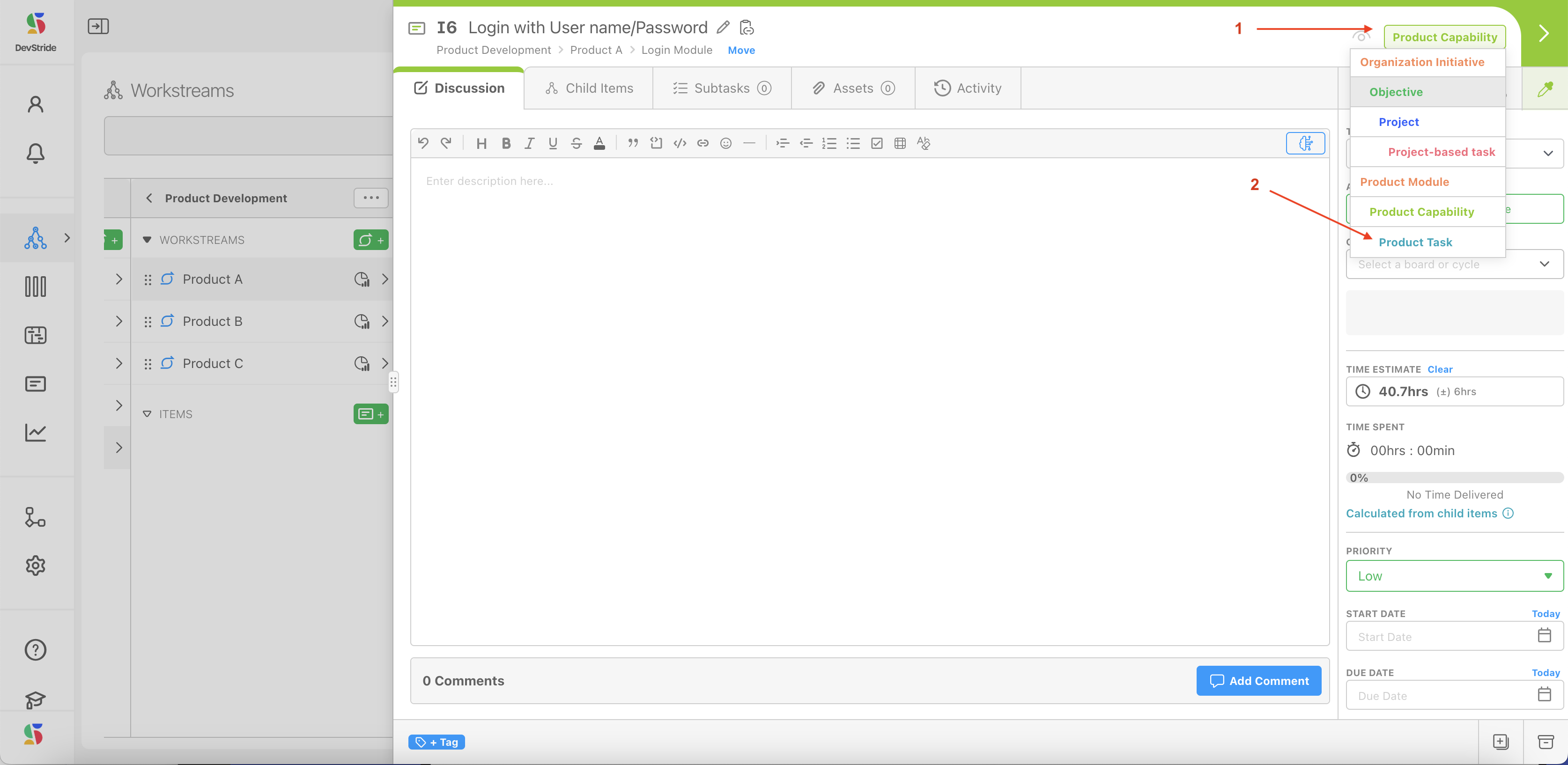
The item now appears in the Map under its new parent as a Task (4).
Sharing status#
The small person / people / organization icon in the header shows whether the item is private, shared with specific people, or shared with the organization. Click it to open Manage Permissions. See Workstream & Item Permissions.
Next: Item Workspace Tabs.