
How DevStride manages the When: Perpetual vs. Cycle-based Boards
Perpetual boards, cadences, timeboxes and cycle boards — what each one is, how they fit together, and how to pick the right kind of board for a team.
On this page
Boards answer the "when"#
Workstreams in Map Value describe what the work is. Boards in Plan Delivery answer who is doing it and when. Every board lives in a folder (a working group), and every board is one of two kinds:
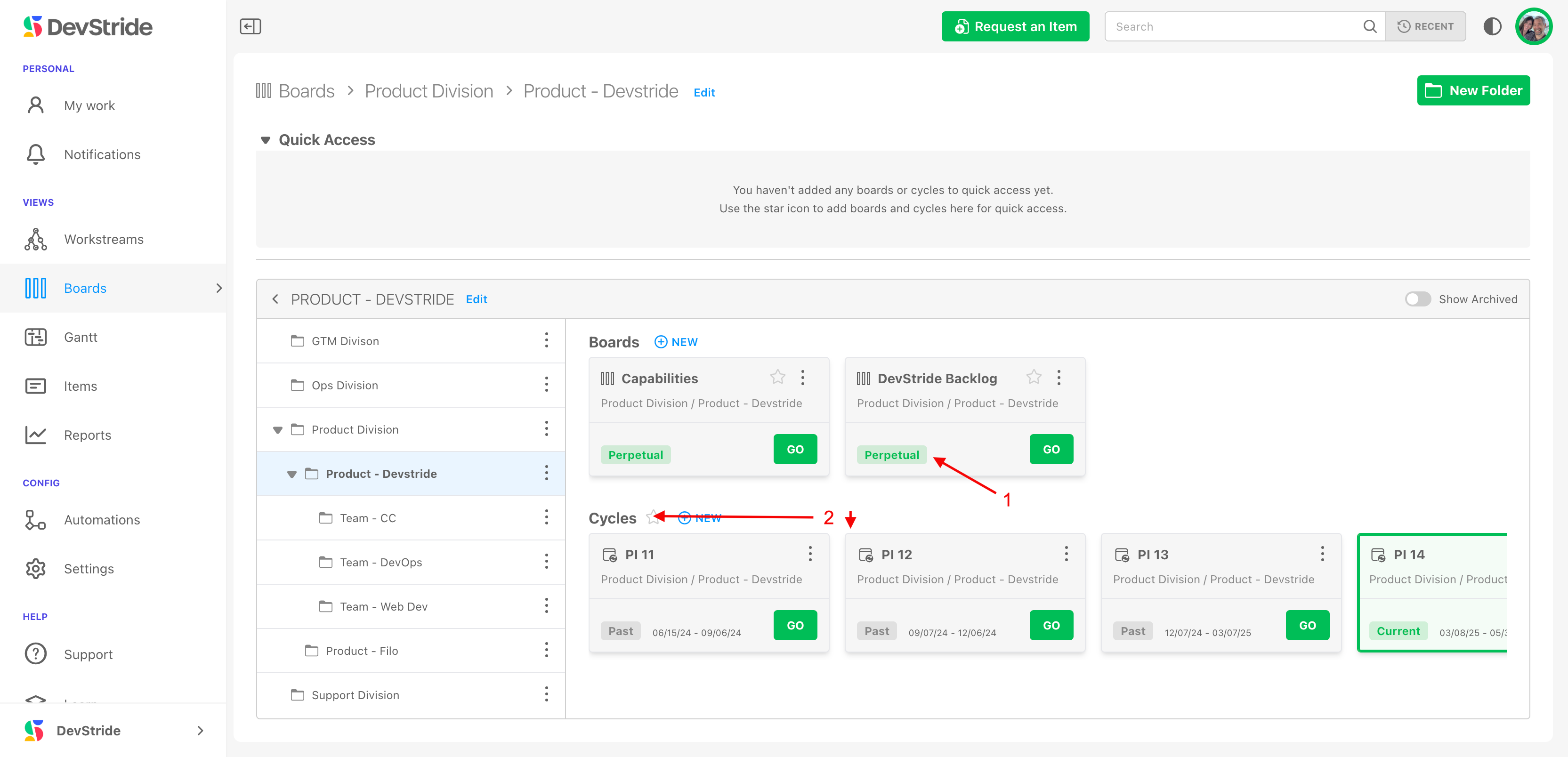
| Perpetual board | Cycle board | |
|---|---|---|
| What it is | An evergreen board with no start or end date. Work flows in, moves across statuses, and flows out. | A board that exists for one timebox (for example Sprint 12, 6–19 Oct). One cycle board is created per timebox, automatically. |
| You create it by | Clicking New under Perpetual Boards in a folder. | Nothing — DevStride creates it when the folder has a cadence and that cadence gets a new timebox. |
| Dates | Items keep whatever due dates you give them. | Items take the cycle's start and end dates when you add them (see below). |
| Good for | Backlogs, support queues, operations to-do lists, anything "always on". | Sprints, monthly plans, quarterly objectives, program increments. |
| Card badge | Perpetual | Past, Current or Future, plus the date range |
Most organizations use both: a perpetual backlog board that feeds work into the team's cycle boards.
The four words you need#
- Cadence — a rhythm, defined once in Configure Settings → Cadences: "a new timebox every 2 weeks, labelled
Sprint ${counter}". A cadence has no dates of its own. - Timebox — one concrete period on that cadence, with a label, a start date and an end date: Sprint 12, 6–19 Oct. You add timeboxes to a cadence (DevStride pre-fills the next dates for you).
- Folder — a working group in Plan Delivery. A folder that can contain cycles is bound to exactly one cadence and one status collection.
- Cycle board (or just cycle) — the board DevStride creates for a folder for each of its cadence's timeboxes. Its name is the timebox label; its dates are the timebox dates.
A worked example
You create a cadence Sprints: every 2 Weeks, template
Sprint ${counter}. You then add three timeboxes to it — Sprint 1 (6–19 Oct), Sprint 2 (20 Oct–2 Nov), Sprint 3 (3–16 Nov).Two folders use that cadence: Platform Team and Mobile Team. DevStride creates six cycle boards — a Sprint 1, Sprint 2 and Sprint 3 under each folder. When you add a fourth timebox next month, both folders get a Sprint 4 automatically. Each team plans its own items on its own cycle boards, but both run on the same heartbeat, so a report can compare their Sprint 2s directly.
Nested cadences work the same way one level up: a 12-week Program Increment cadence can be the parent of the Sprints cadence, so each PI timebox holds six sprint timeboxes and the label template can read Sprint ${ancestor.1.counter}.${timeboxCounter} → Sprint 3.1 … 3.6. See Cadences for the settings screen.
What a cadence changes downstream#
- Items inherit the cycle's dates. An item created on a cycle board starts on the cycle's start date and is due on its end date. An item moved onto a cycle board is re-dated to the cycle as long as the organization setting Sync work item dates with their cycles (Configure Settings → Admin → Global Automations) is on — it is on by default. With it off, only empty dates are filled in. Dates are never changed when an item leaves a cycle.
- Track Progress (Gantt) places items by those dates, so a team's committed work lands in the right fortnight without anyone typing a date.
- Filters, automations and reports understand current, past and future cycles — for example the Cycle Carry-Forward report shows what each cycle completed and what rolled forward.
- Cycle boards are not editable the way perpetual boards are. Their name and dates come from the timebox; change the timebox in Cadences and the cycle board follows.
Choosing for a team#
Ask one question per working group: is this work committed to a period, or does it just keep flowing?
- Flowing (tickets, backlog, operations) → one or more perpetual boards.
- Committed to periods (sprints, monthly or quarterly plans) → a folder with a cadence, which gives you cycle boards.
- Both → a perpetual backlog board plus cycle boards in the same folder. Pull items from the backlog into the current cycle during planning.
Reading order#
The rest of this section follows the order you set things up in:
- Working group folders — the containers, and how to navigate them.
- Adding a folder and creating subfolders — the New Folder dialog.
- Setting up and using perpetual boards and Using cycle boards.
- Import stories and epics into boards — getting work onto a board.
- Understanding board views and Track and move work with board views — Card, Table and 2D.
- Manage and edit dependencies, Boards and WIP limiters, Board and folder permissions.