
Adding a Folder
Create a working group folder in Plan Delivery: every field in the New Folder dialog, the Visibility choice, what you can and cannot change later.
On this page
Before you start#
Decide two things about the working group you are creating:
- Will it hold perpetual boards, cycle boards, or both?
- If cycles: which cadence will it run on? Cadences live in Configure Settings → Cadences and must exist first (see Cadences). The folder's cadence cannot be changed once it has cycles.
Create the folder#
- Open Plan Delivery.
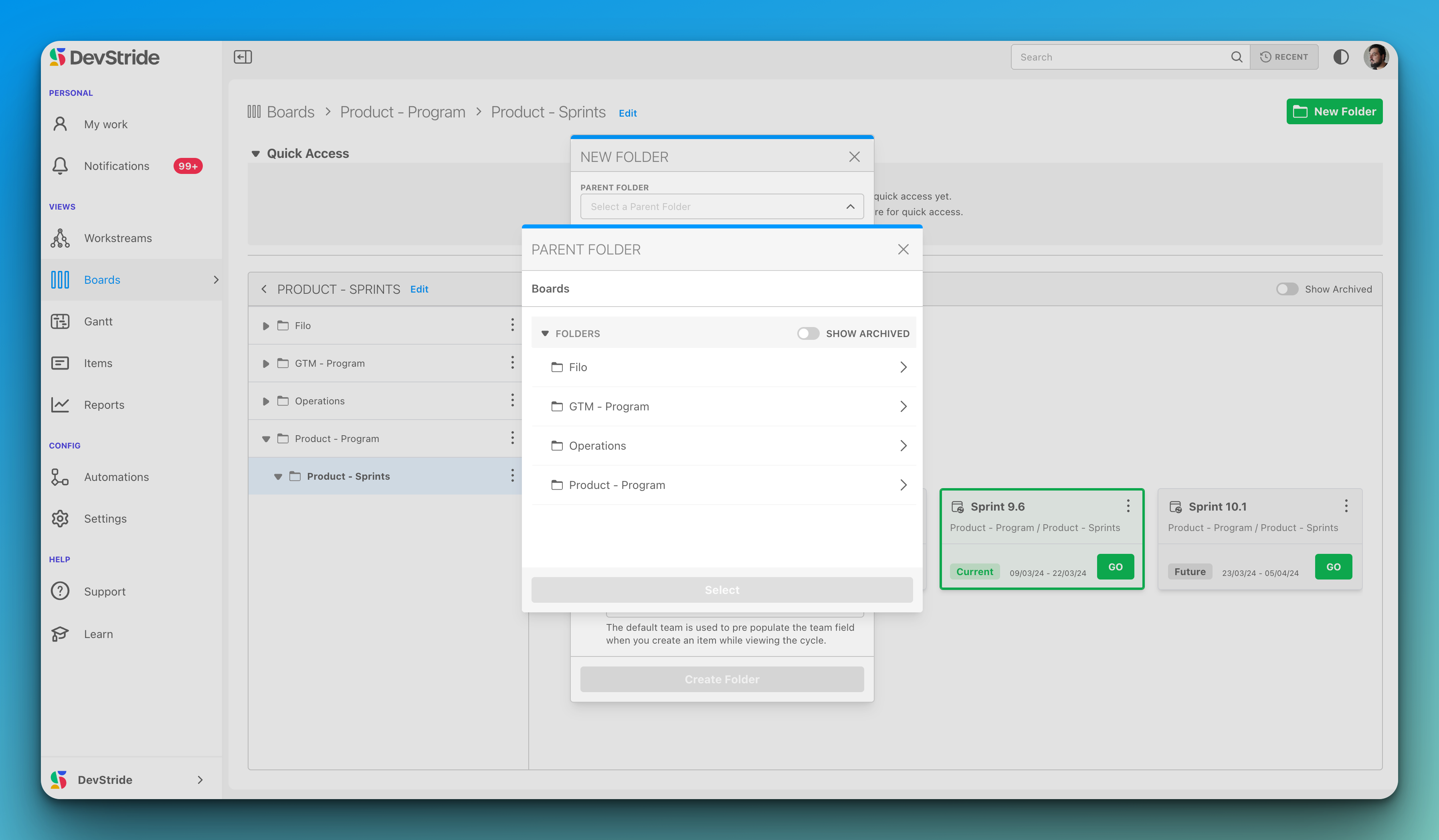
- For a root folder, click + Folder in the content pane header. For a nested folder, right-click the parent in the folder browser and choose New Folder (see Creating subfolders).
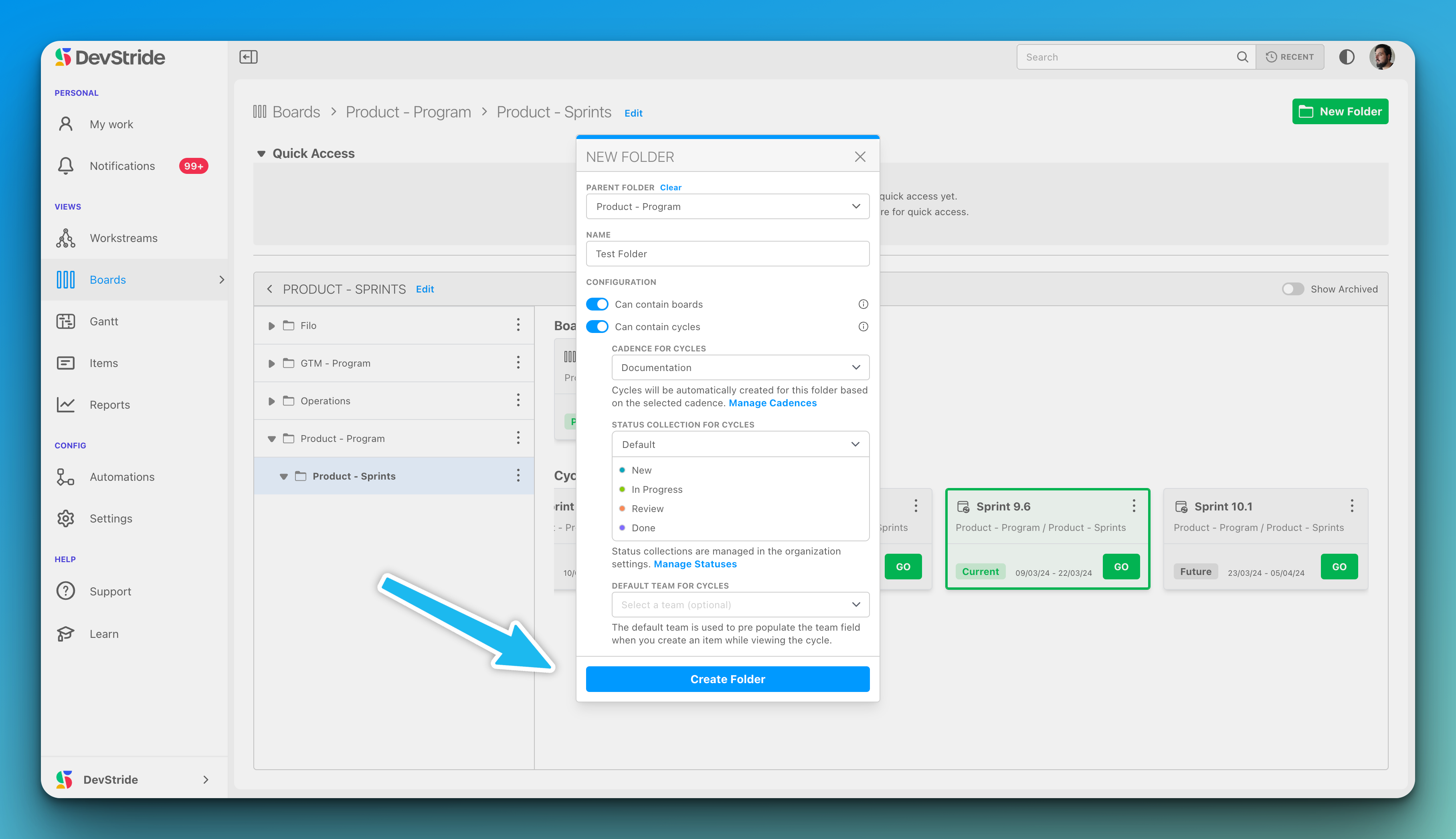
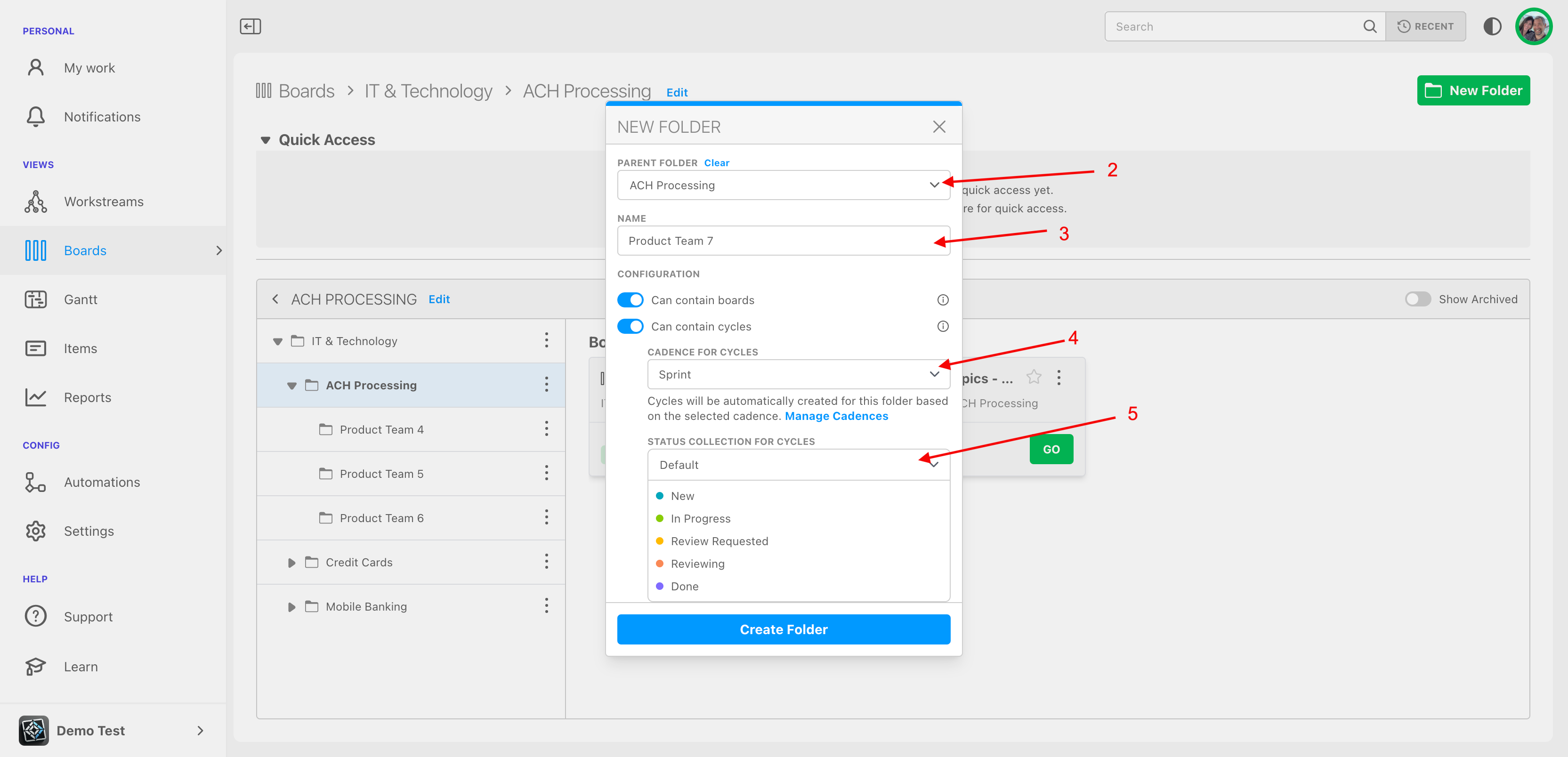
- Fill in the New Folder dialog (fields below) and click Create folder.
Fields#
| Field | What to enter |
|---|---|
| Name | Required, at least 3 characters. Name the working group, not the project: Platform Team, Marketing Ops. |
| Parent Folder | Leave empty for a root folder, or pick a parent to nest under. Clear removes a selection. |
| Can contain boards | On if the folder will hold perpetual boards. |
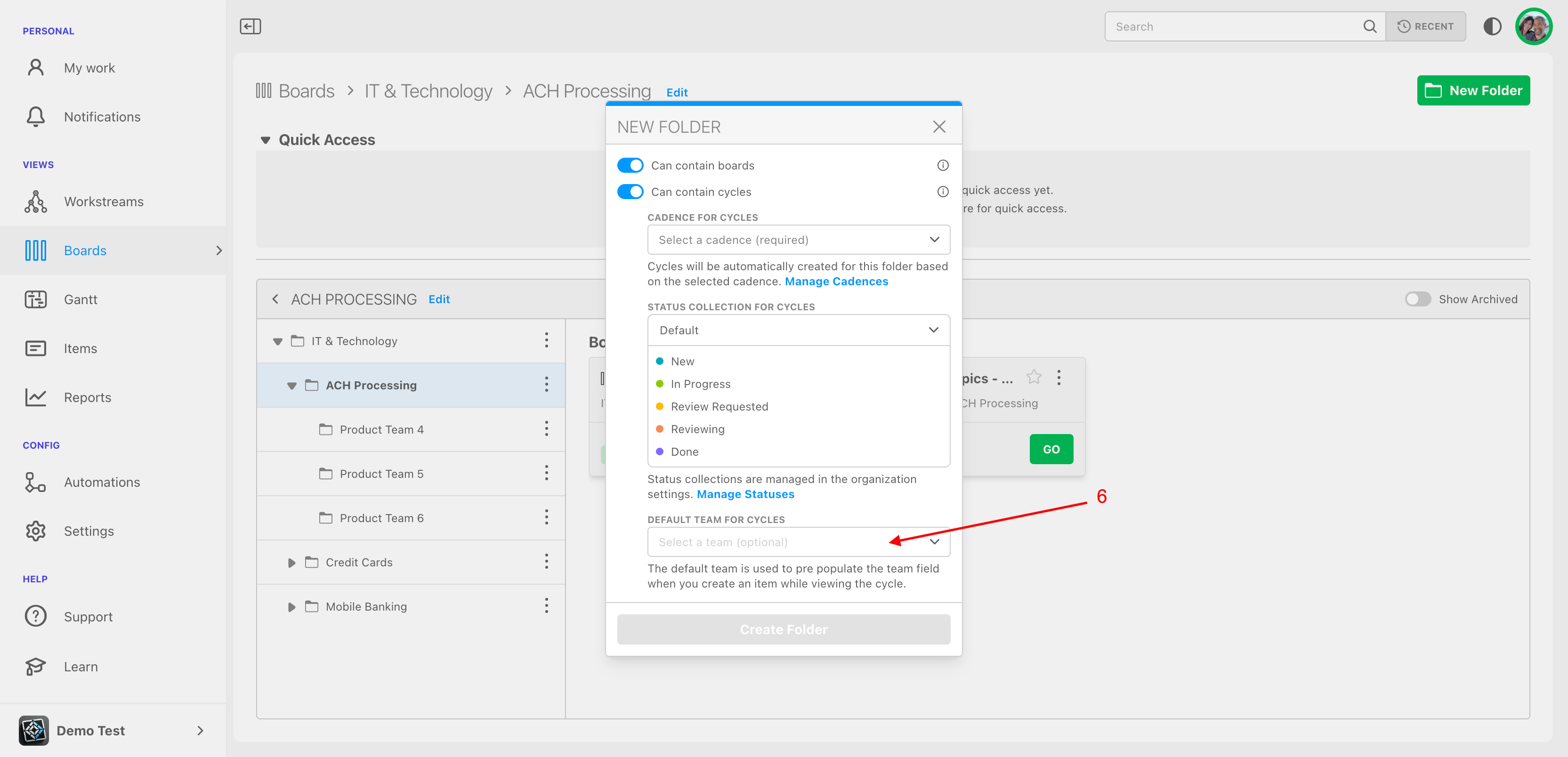
| Can contain cycles | On if the folder will hold cycle boards. Turning it on reveals the three fields below. |
| Cadence for Cycles | Required with cycles. DevStride creates one cycle board in this folder for every timebox of the cadence, past and future. Only active cadences are offered; Manage Cadences jumps to settings. |
| Status Collection for Cycles | Required with cycles. The statuses (columns) every cycle board in this folder uses. |
| Default Team for Cycles | Optional. Pre-fills the Team field when you create an item while viewing one of the folder's cycles. |
Visibility (root folders only)#
A root folder has no parent to inherit from, so you choose its starting access:
| Option | Who gets access |
|---|---|
| Public — anyone in your organization (default) | Everyone can view and edit immediately. |
| Team — team name | Only members of the selected team can view and edit. Offered when Can contain cycles is on; picking a Default Team for Cycles switches to this option automatically. |
| Private — only to you | Starts visible only to you. Invite users or teams, or set organization access, later from Permissions. |
A nested folder shows no Visibility choice. Instead the dialog notes Folders inherit permissions from the parent folder. You remain the folder's Owner either way.
What happens next#
- With Can contain cycles on, DevStride immediately generates a cycle board for every existing timebox of the cadence, and adds one each time a new timebox is created. Nothing else to do.
- With Can contain boards on, the folder's Perpetual Boards section shows a New button. See Setting up and using perpetual boards.
Changing a folder later#
Open the folder and click Edit (or right-click it and choose Edit). Everything stays editable except:
- Cadence for Cycles is locked once the folder has cycles.
- Can contain cycles cannot be turned off while cycles exist; Can contain boards cannot be turned off while boards exist.
- Changing Status Collection for Cycles or Default Team for Cycles updates the current and future cycles; past cycles keep their old values.
Who can create folders
Creating a root folder or a subfolder needs the Manage boards capability, which the default Member role has. A subfolder also needs Editor access on the parent folder. Your organization may have tightened this in Roles & Permissions.