
Admin Onboarding - Item Workspace - Right Bar: Time Spent
Step 7h of admin onboarding — log time on an item, read how it rolls up and compares with the estimate, log time for a teammate or on subtasks, and review time across users.
On this page
Time spent exists to make the next estimate better. DevStride compares what was logged against what was estimated and flags the gap, on the item and everywhere the item appears. It is not a payroll or billing system, although the data can feed one; ask your implementation team if that is your goal.
How time rolls up#
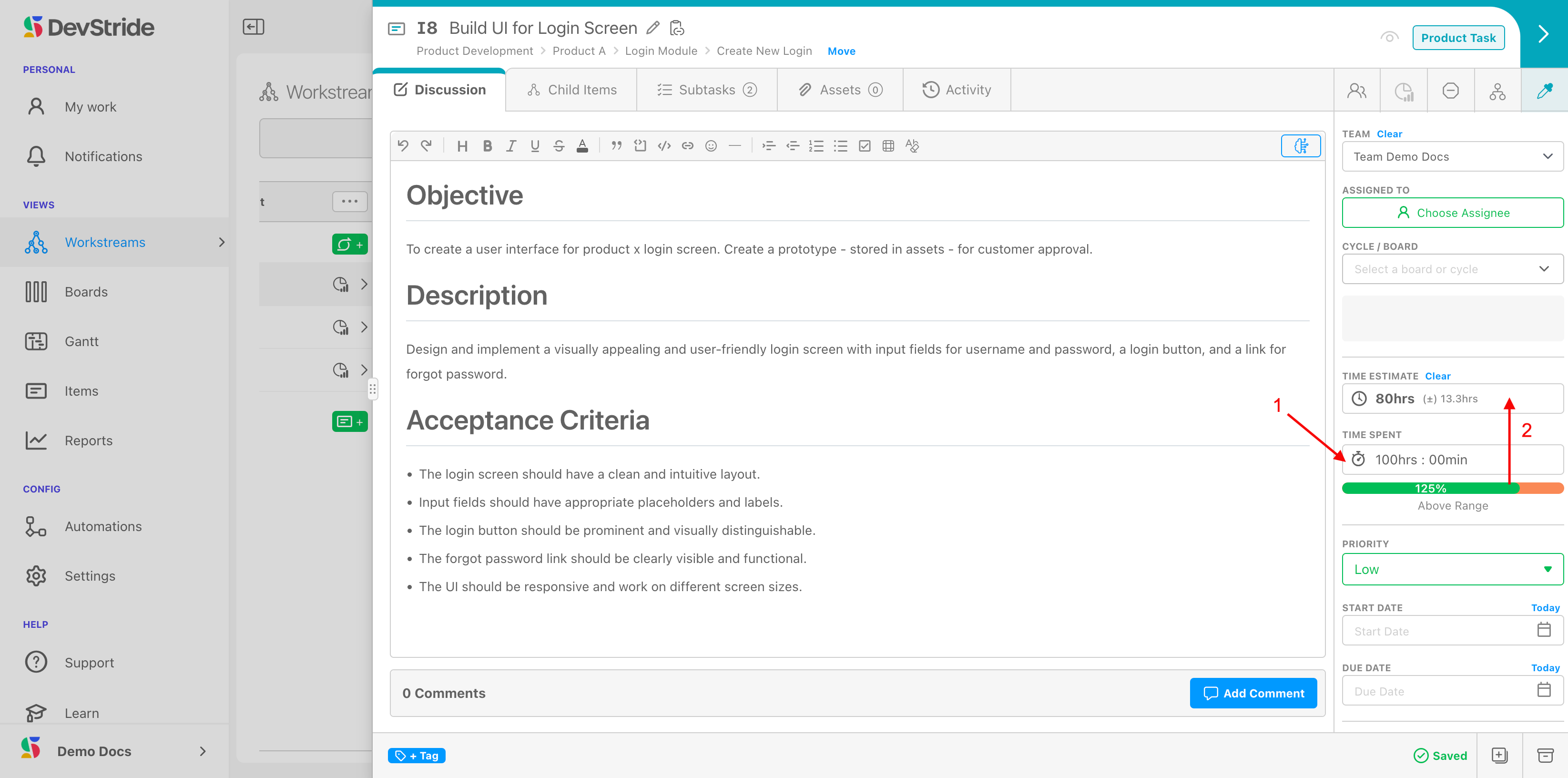
Time can be logged on an item at any level of the hierarchy. Each item keeps two figures that never overlap: its own logged time and the rolled-up time of its descendants. Every total you see (sidebar, tables, cards, reports) is the sum of the two, with each hour counted once. A parent's caption breaks the total down so you can tell coordination time on the Epic from work on its Stories.
Restricting time to bottom-level items
Under Configure Settings → Admin → Time Tracking, an administrator can turn off Allow Parent Item Time Entries (on by default). New entries are then refused on any type that has child types, while existing parent-level entries stay visible. See Allow Parent Item Time Entries. The same page sets lock and soft-close dates for closed periods.
When logged time exceeds the estimate, a warning icon appears on the item and across the Map, boards, and Gantts, linking to the completion stats with the overage as a percentage.
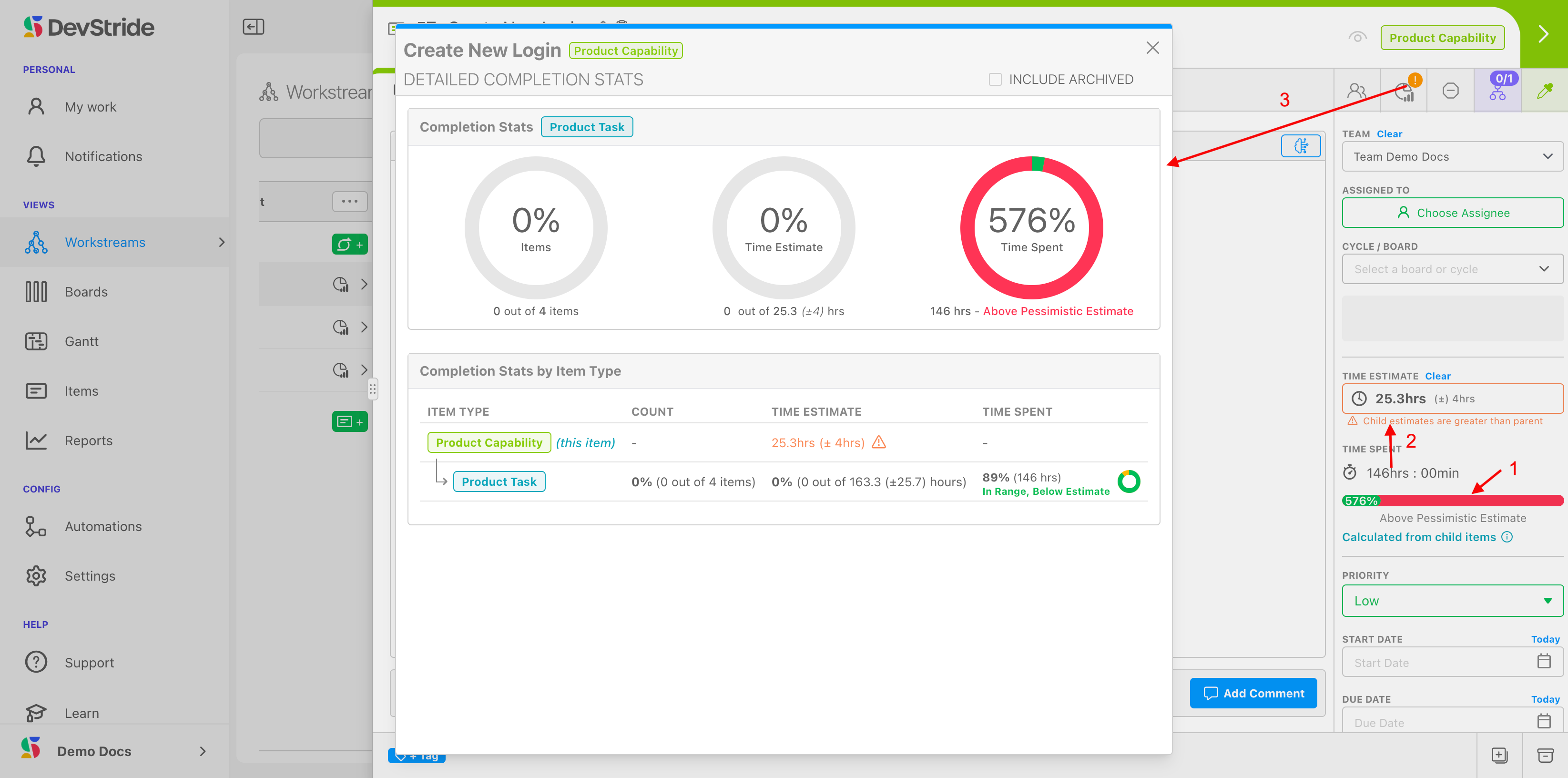
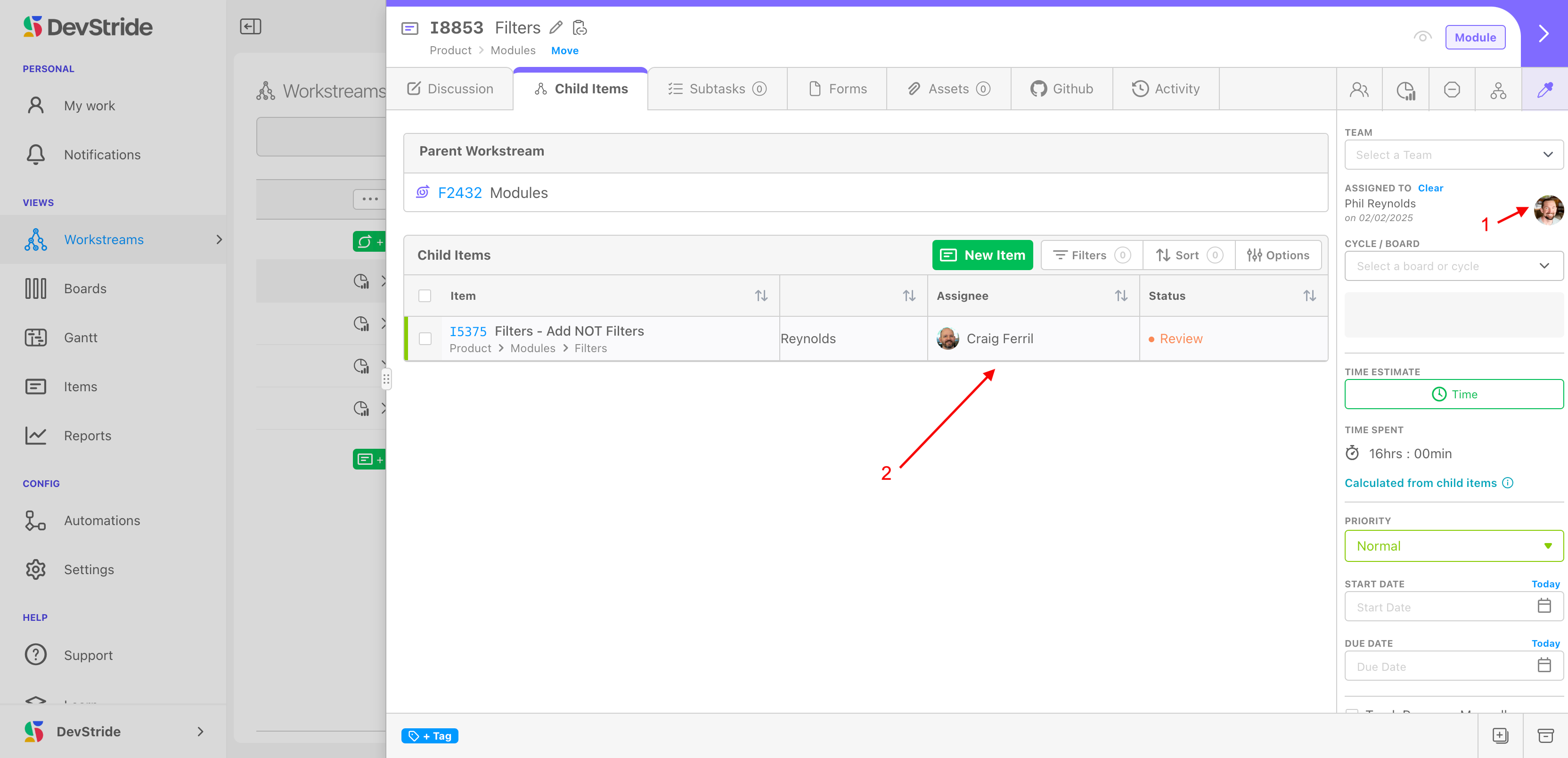
A parent's assignee is the accountable owner; the time on each child belongs to that child's assignee. Hands-on work at the parent level (review, integration) is logged on the parent itself.
Recording time on an item#
The Time Spent field shows the total, No time tracked when empty, or Calculated from subtasks (read-only) when the item tracks time on subtasks. Click it, or open the item's Time Tracking tab, to reach the entries: Total Time Spent, a New Entry button, and a table with Time, Description, Start, End, Contributor, and Actions columns. Click a row or its icons to edit or delete. Columns sort on click.
Add or edit an entry#
Click New Entry (Track Time) or open an entry (Edit Tracked Time):
| Field | What to enter |
|---|---|
| Time Spent (HH:MM) | Required. See Entering durations. |
| Contributor | Who the time belongs to; defaults to you. See Logging time for a teammate. |
| Date Ended | When the work finished, or leave Any Date. DevStride derives the start from the duration. Future dates are allowed for planned work. |
| Description | Optional note (Work Description). |
Save adds the entry; Update applies edits.
Keyboard
In the entries table, arrow keys move between rows, Enter or Space opens one, Delete removes one. In the form, Cmd/Ctrl + Enter saves and Esc cancels.
Entering durations#
The Time Spent (HH:MM) field accepts two styles and remembers your choice:
- Natural (default):
1h 30m,90 minutes,2:45, or a bare number of hours (1.5becomes 1:30). - Ledger: digits fill from the right, so typing
130gives01:30. Minutes cap at 59.
Logging time for a teammate#
Change Contributor to another member to record the time on their behalf, or choose No User for unattributed time. Anyone who can edit the item can do this; no special role is needed. Viewing entries needs only read access.
Totals update everywhere immediately, including for teammates viewing the same item.
Time on subtasks#
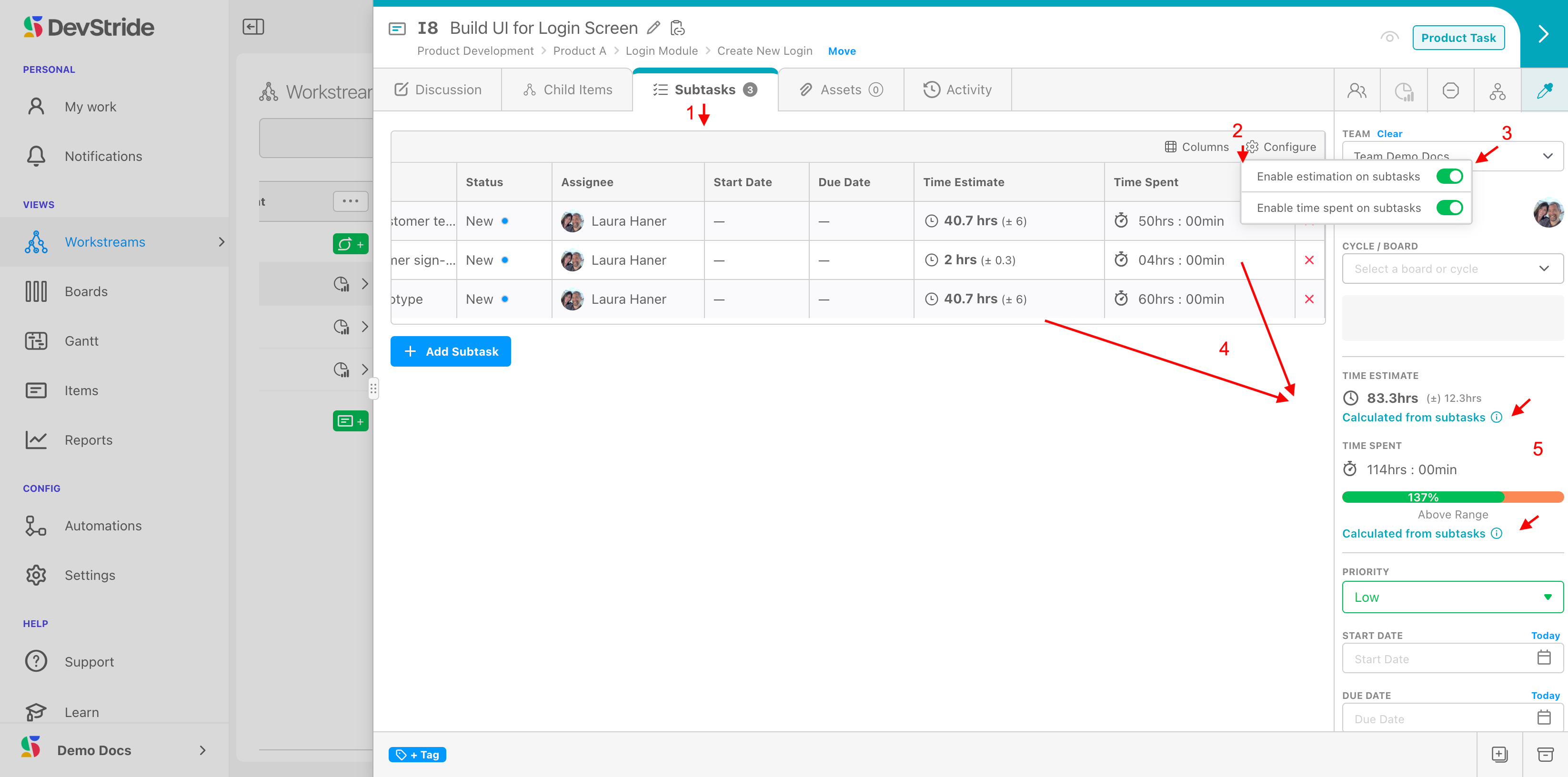
On the Subtasks tab, click the gear (Configure) and turn on Enable time spent on subtasks (and Enable estimation on subtasks if you want). Each subtask then takes its own entries, and the item's Time Spent becomes the calculated sum. Useful when the steps of a Story are substantial enough to time individually, or for rudimentary billable-time tracking per engagement.
Reviewing time across users#
The User Time Tracking report in Measure Performance lists entries across people and items, grouped by Date, Item, or None, with subtask time in its own sections. Reports require a role with reporting access. For weekly timesheet-style entry, see the Weekly Logs plugin.
Tracking overdue custom dates#
A Date or Date Time custom field can have Track overdue turned on in Data Model → Custom Fields. Past dates on open top-level items then show red with (Overdue) in tables. Off by default.
Next: Priority.