
Admin Onboarding - Getting Started
Step 1 of admin onboarding — confirm your organization exists, complete your Organization Profile (name, domain, logo, timezone), choose the Global Automations defaults, and learn your way around Configure Settings.
On this page
Welcome. This guide walks an administrator from an empty organization to a workspace a team can work in. Each step takes a few minutes and ends with a link to the next one. You do not need to be technical.
Step 1: Your organization#
Your company's instance of DevStride is an organization. You created it when you signed up: the Organization Name on the signup form became the organization, and you are its Owner. One organization is enough however many teams and projects you run.
If you were invited into an existing organization and are now taking over administration, ask the Owner or an Admin to set your role to Admin on the Users page; otherwise Configure Settings will not appear in your sidebar.
Creating a second organization
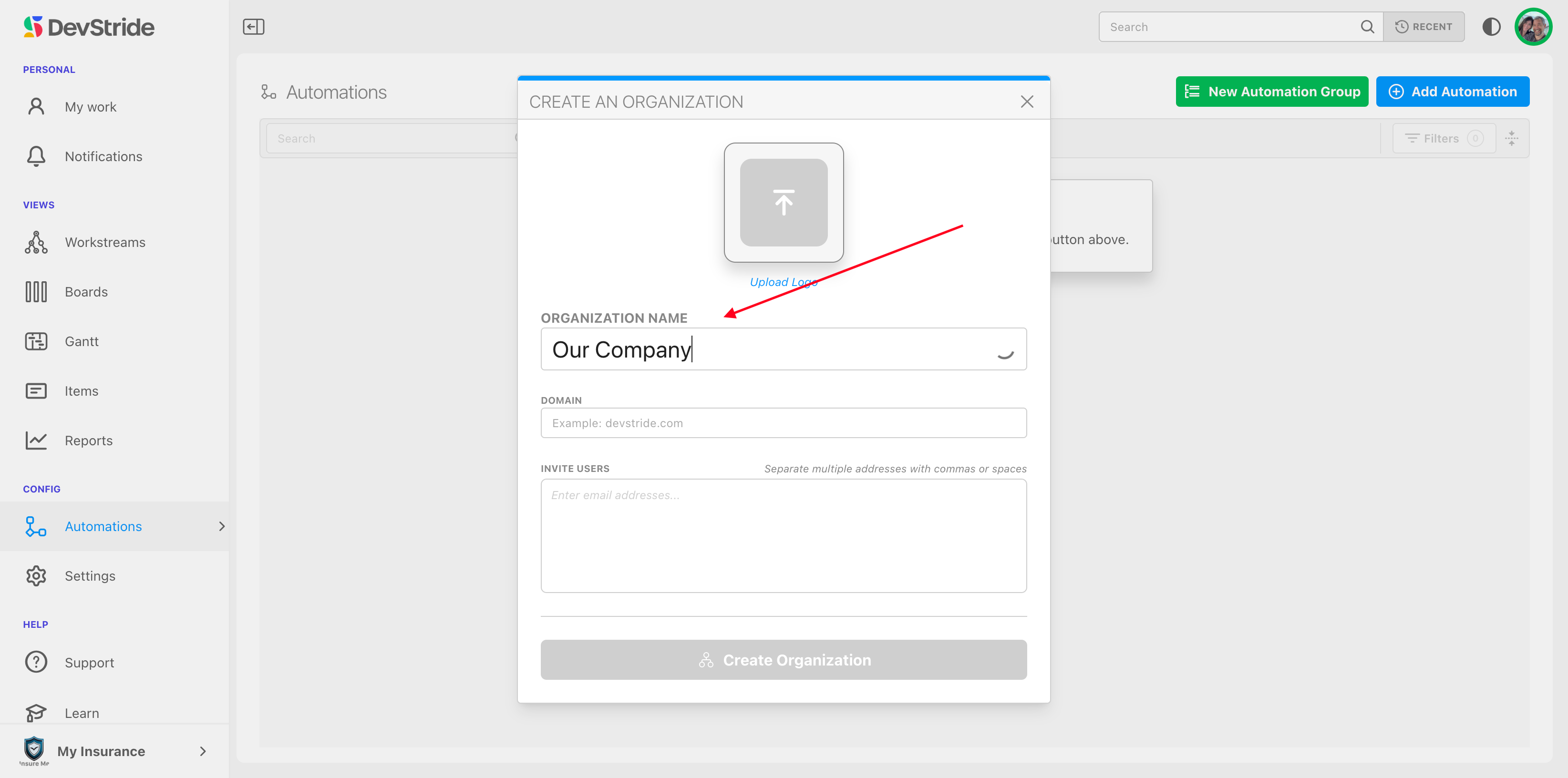
You rarely need another organization, but you can create one for a separate company or a sandbox. Click your organization's logo or name at the bottom of the left sidebar and choose Create Organization. The Create an Organization dialog asks for an Organization Name, an optional logo (Upload Logo), an optional Domain, and email addresses to Invite Users (separated by commas or spaces).
Step 2: Complete your Organization Profile#
Open Configure Settings (the gear near the bottom of the left sidebar). It opens on Organization → Profile, whose page heading reads Organization Profile. Every field saves on its own, with a brief Updated confirmation. Fill it in now; it takes a minute.
| Field | Why it matters |
|---|---|
| Logo | Shows in the sidebar and on public request forms. |
| Name | Your organization's display name. |
| Domain | Your web domain (acme.com). Used to recognize colleagues and for Enterprise SSO. |
| Timezone | Drives cycle dates, SLA clocks, and report boundaries. Set it before creating cadences. |
| Industry, Size, Methodology | Descriptive; multi-select where it makes sense. |
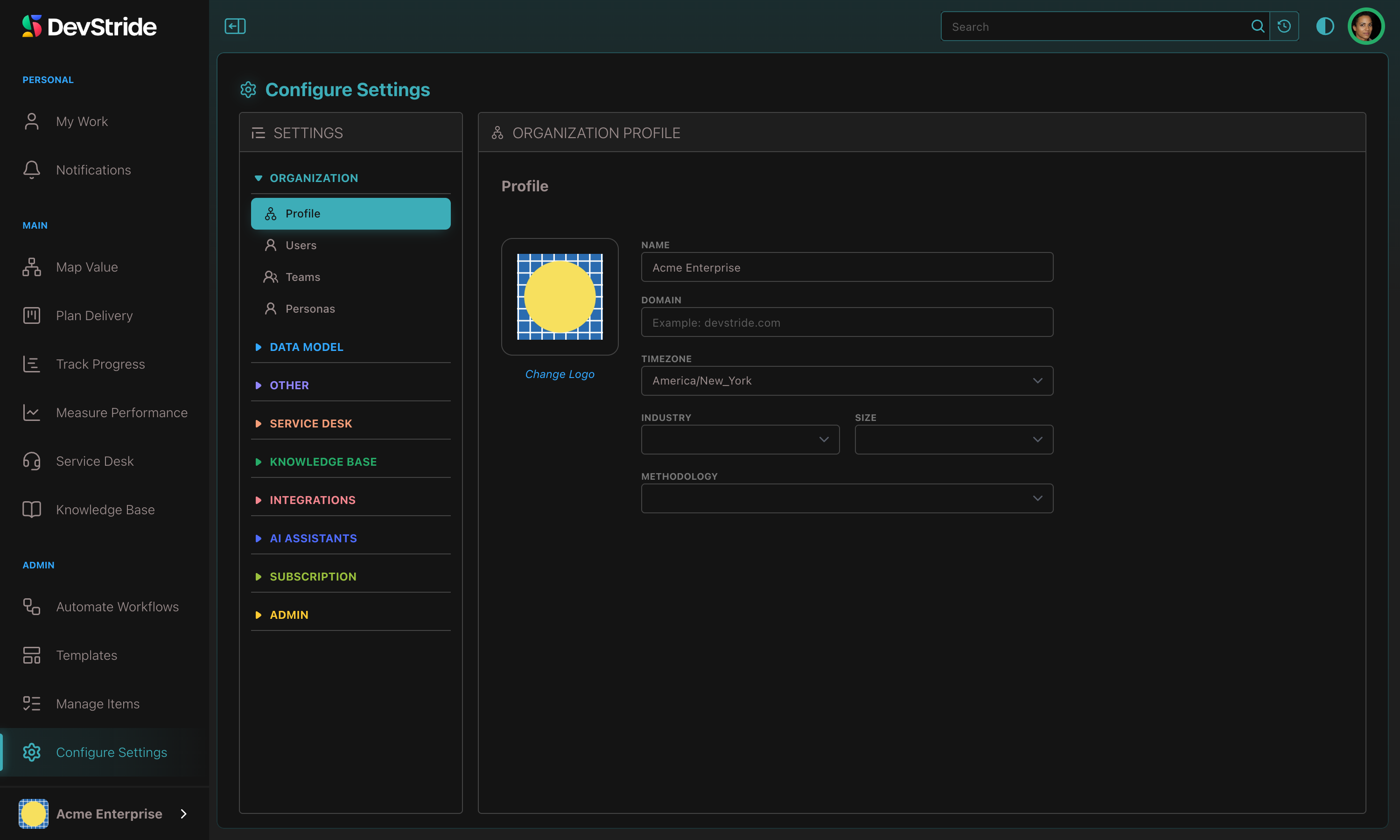
Full detail on this page: Organization Profile.
Then open Admin → Global Automations. Its four checkboxes switch on organization-wide automations. The defaults are fine for onboarding; know what they do so you can revisit them.
| Option | What it does |
|---|---|
| Sync work item dates with their cycles | Items moved onto a cycle board take the cycle's start and end dates. Leave on if any team works in sprints. |
| Automate New/Done | A parent moves to Done when all its children are Done, and back to New if one reopens. |
| Enable Link Mode | Date changes propagate down dependency chains (see Link Mode). |
| Child items inherit their parent's sprint and team | Off by default. Turn on only if parents and children live on the same boards. |
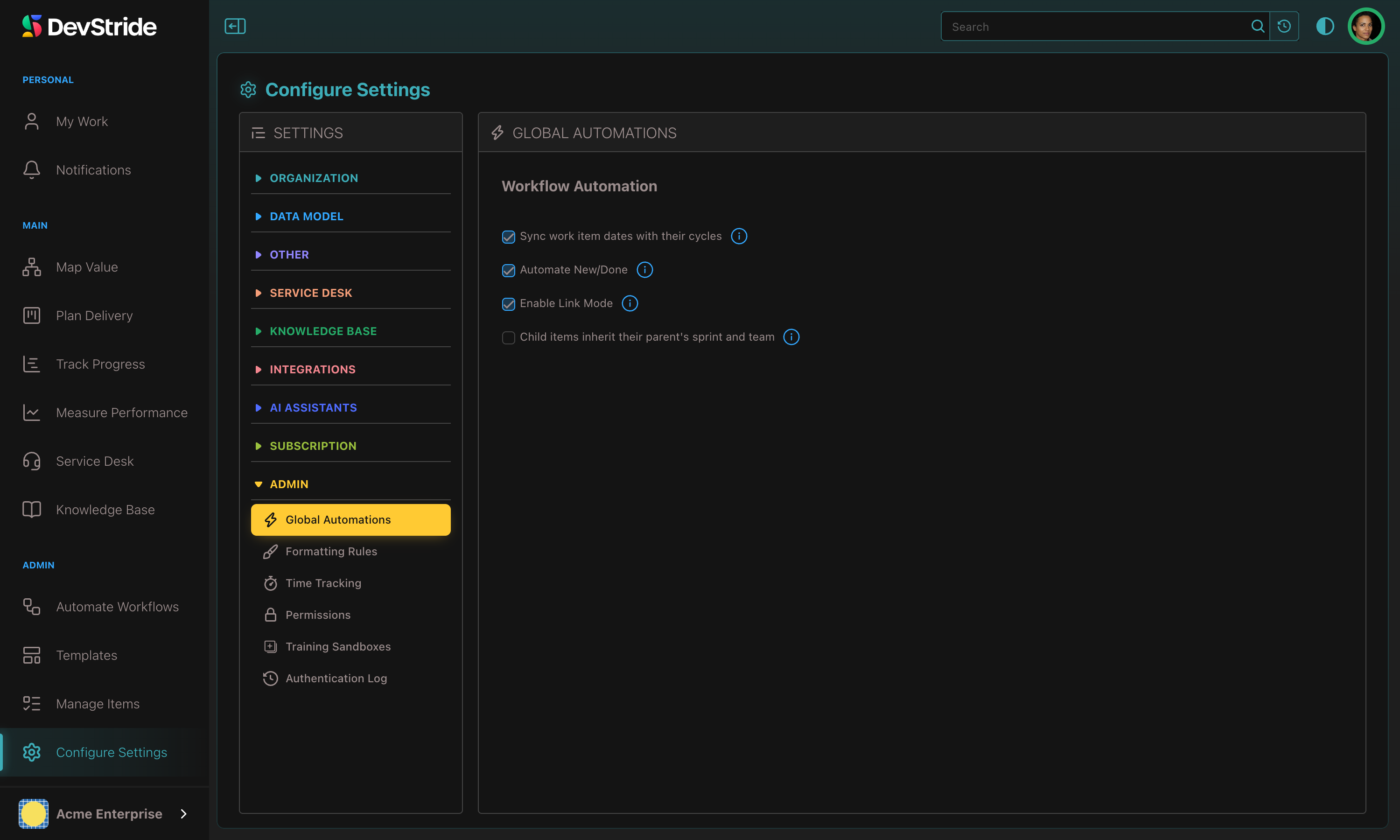
Full detail on this page: Global Automations.
Step 3: Learn the Settings layout#
The rest of this guide lives in Configure Settings. Its left navigation is an accordion; one group is open at a time.
| Group | Contains |
|---|---|
| Organization | Profile, Users, Teams, Personas |
| Data Model | Item Types, Priority Levels, Item Statuses, Subtask Statuses, Tags, Custom Fields, Effort Point Estimation, Time Estimation, Workspace Tab Order, Sidebar Field Order |
| Other | Cadences, Import History |
| Service Desk | Service Desk, Request Forms, Single sign-on, SLA Policies, Schedules |
| Inbound addresses, Sending domains | |
| Knowledge Base | Stages |
| Integrations | Credentials, GitHub, Slack, Microsoft Teams, Database Access, Identity Providers, Webhooks |
| AI Assistants | Settings, Connect AI, Usage, Budgets, Prices |
| Subscription | Your Plan, Billing Details, Payment Method, Billing History |
| Admin | Global Automations, Formatting Rules, Time Tracking, Permissions, Training Sandboxes, Authentication Log |
Entries you lack permission for are hidden, so a Member sees none of this.
Practice without consequences
If you want to click around before touching real data, Training Sandboxes creates a copy of DevStride loaded with a demo dataset. See Training Sandboxes.
Next: Basic Terms, then Setting up Users and Teams.