
Team Logs
Review the whole team's week, edit anyone's entries, and add people to tasks in Weekly Logs Team Logs mode.
On this page
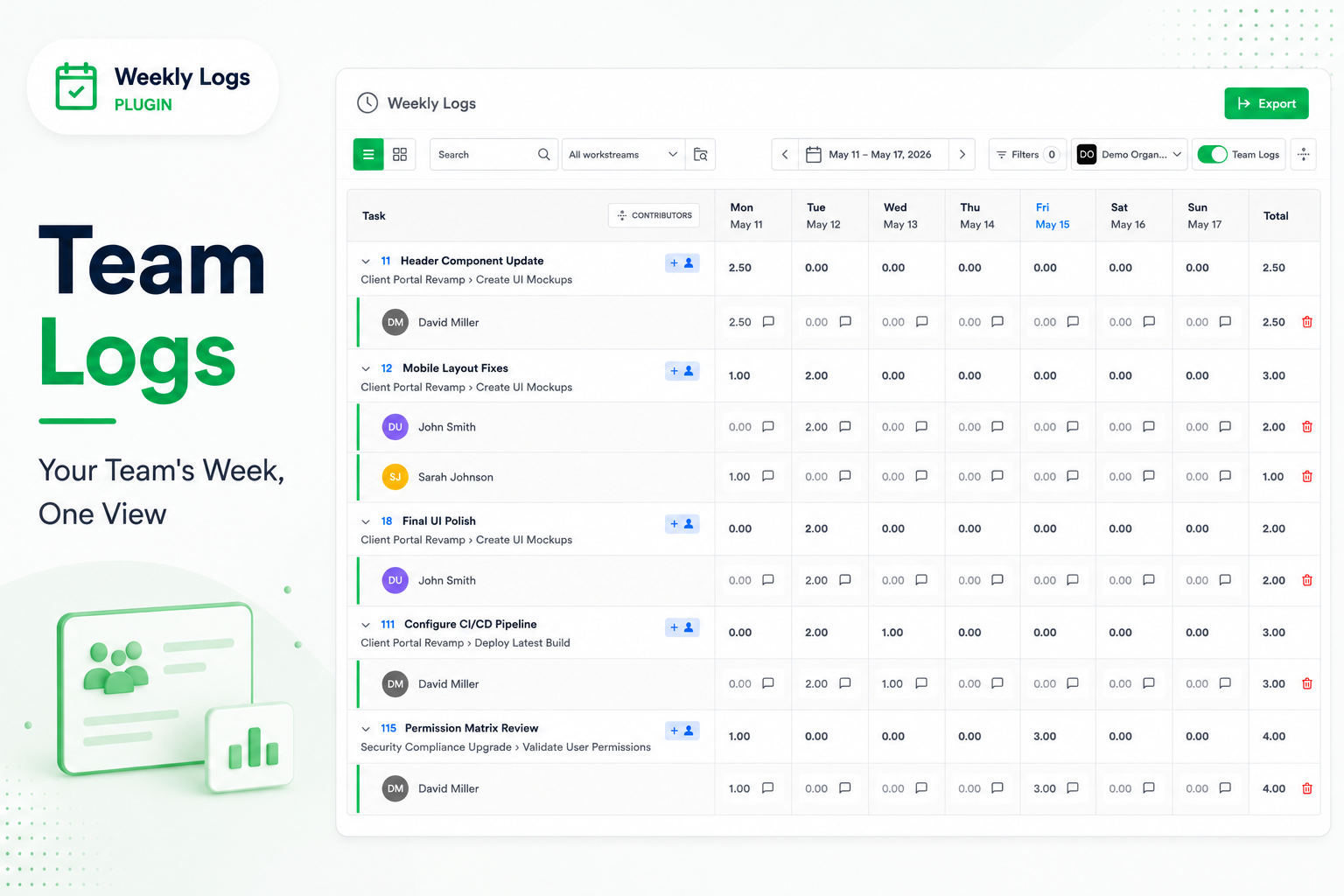
Team Logs shows every team member's time for the week in one grid, so you can see where the hours went without asking. Admins can edit; other members can look.
Turn on Team Logs#
Toggle Team Logs in the toolbar. The grid switches to multi-user mode at once; toggle it off to return to your own timesheet.
What changes
Switching Team Logs on or off clears any workstream filters, and Proposed Items is hidden while Team Logs is on.
Read the grid#
Each task row shows the combined total for everyone. Click the chevron on a row to reveal a row per person with their hours per day and weekly total. Expand All and Collapse All in the grid header open or close every task.
Edit someone's entries (admins)#
- Expand the task.
- Click the cell for the person and day.
- Enter the hours. It saves automatically.
Add a person to a task (admins)#
- Click + on the task row.
- Choose the person. Their row appears under the task, ready for entries.
Focus on particular people#
Click Filters → Assignee, choose one or more people, and Apply. See Filters.
Permissions#
| Action | Admin | Other members |
|---|---|---|
| View Team Logs | Yes | Yes (read-only) |
| Edit time entries | Yes | No |
| Add people to tasks | Yes | No |