
Item Workspace Quick Links
Step 7c of admin onboarding — the icon strip beside the item tabs: permissions and participants, the blocked flag, relationships and the dependency graph, Create Linked Item, and item colour.
On this page
To the right of the tabs is a strip of icons for things you do often enough to want one click away. Left to right: Permissions, Watchers, Blocked, Relationships, Create Linked Item, Colour.
Permissions and participants#
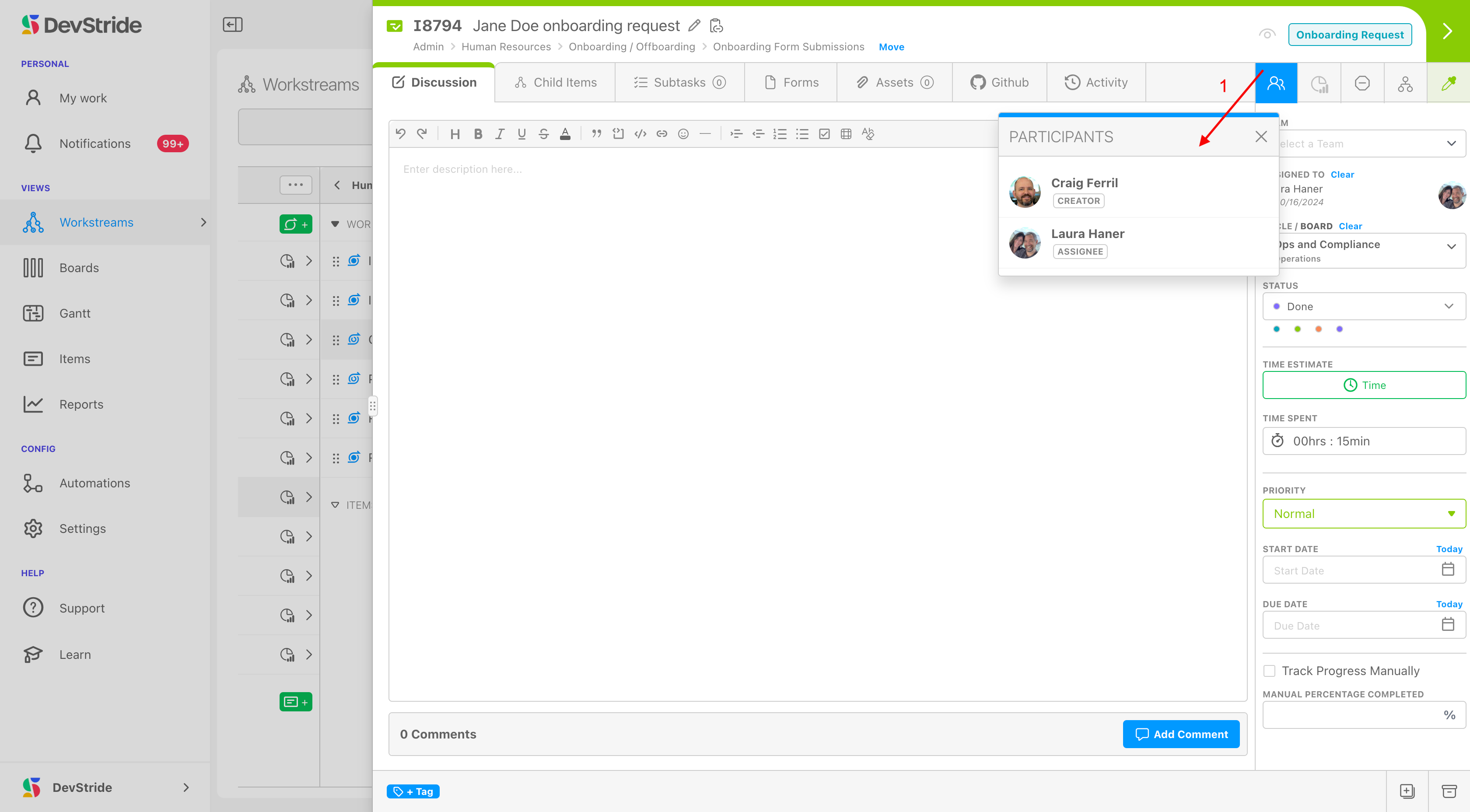
The first icon opens Manage Permissions. Its Participants section lists everyone involved with the item (creator, assignee, watchers, people shared in), and Add Access grants a person, team, or the whole organization a level on this item. Items inherit their workstream's sharing until you override it here. See Sharing & Access.
Completion stats#
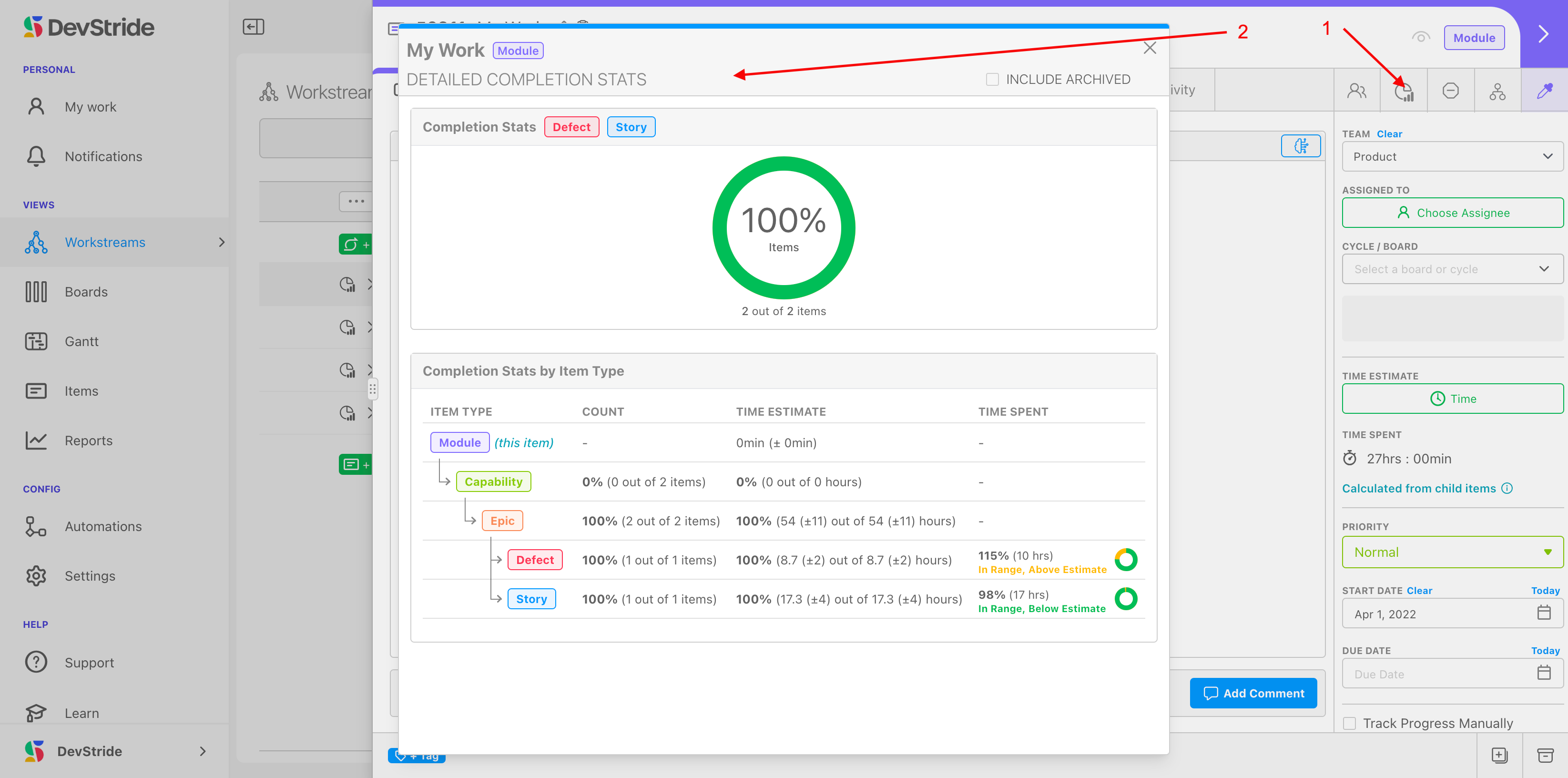
Hover the item icon in the header (or click the warning icon when one appears) for the completion widget: items done out of total, estimate versus time spent, and any overage warnings. Progress Tracking covers how the figure is calculated.
Blocked#
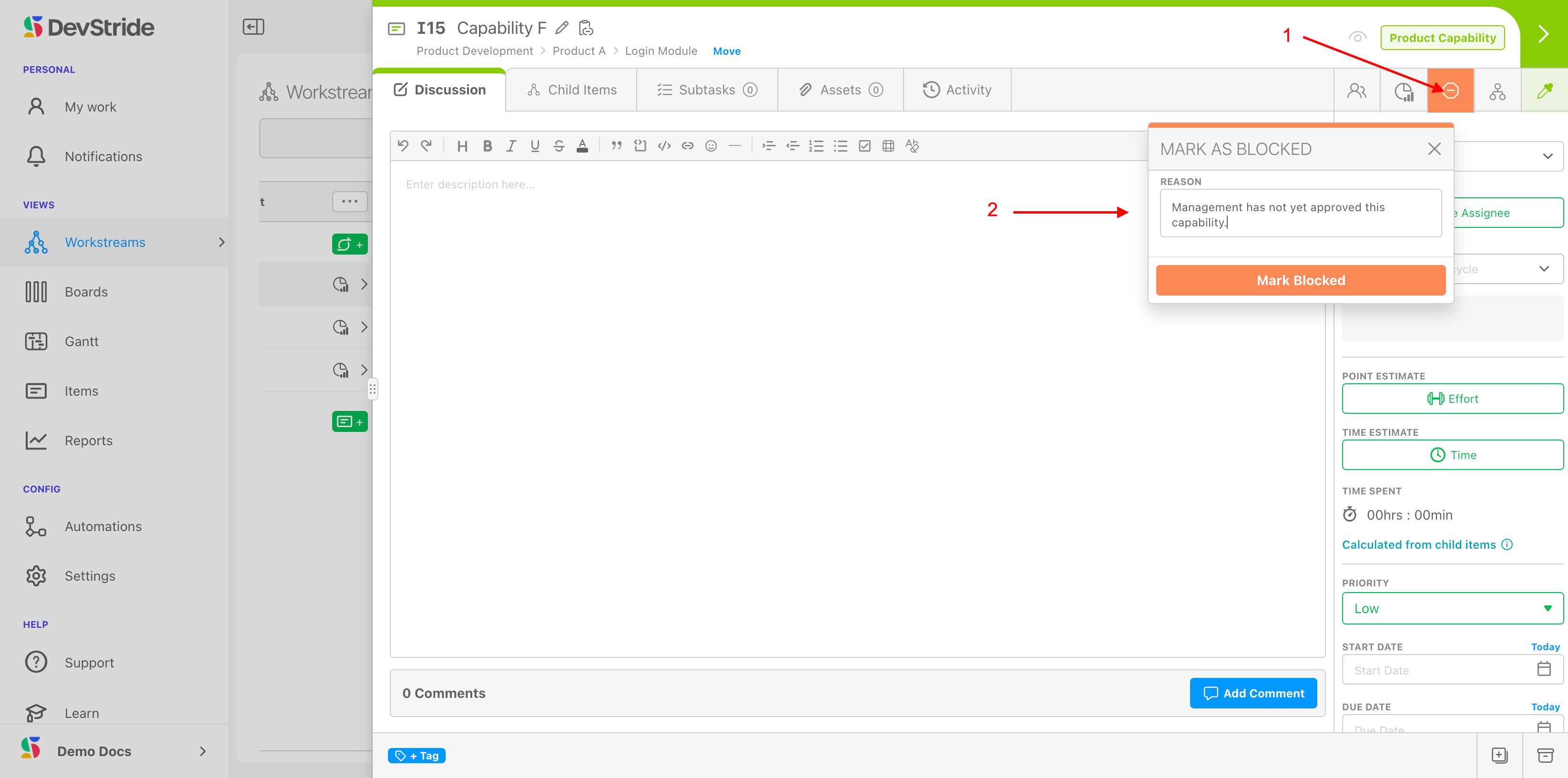
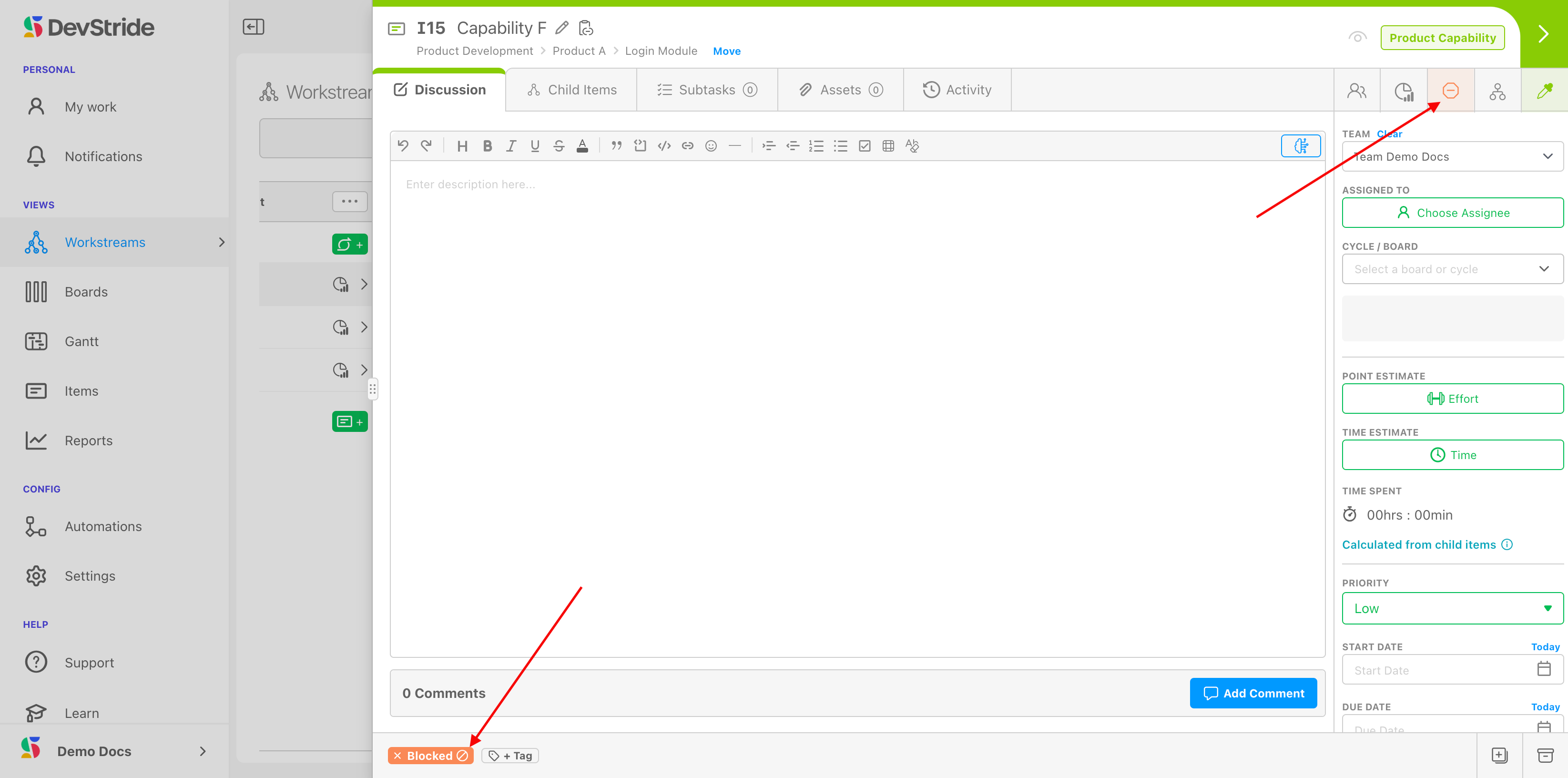
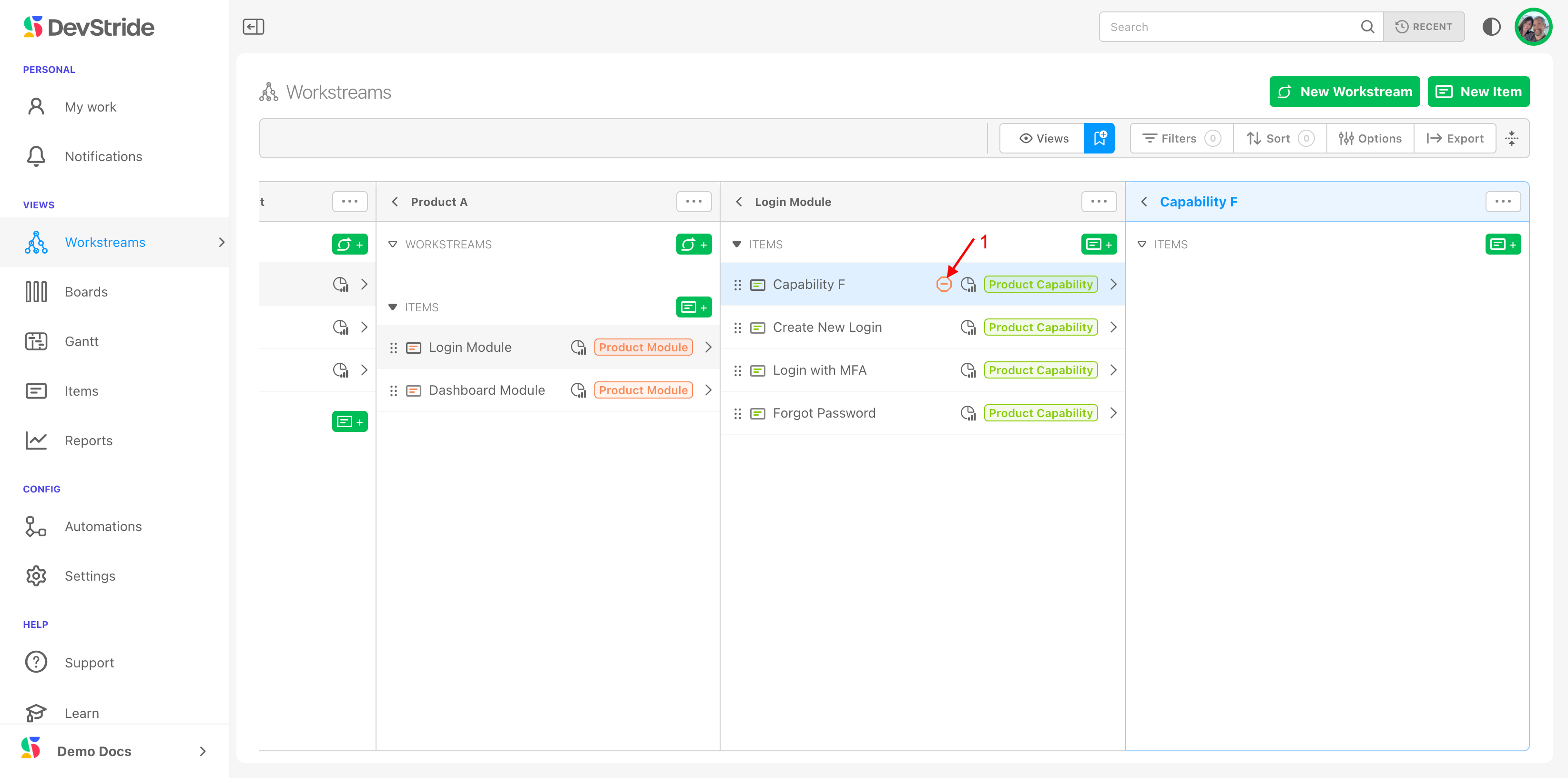
Click the blocked icon to open Mark as Blocked, type a Reason, and click Mark Blocked. The item gets the orange Blocked tag and the flag shows on cards, tables, the Map, Gantts, and reports. Click again (Update Blocked Status) to edit the reason or clear the block.
Relationships#
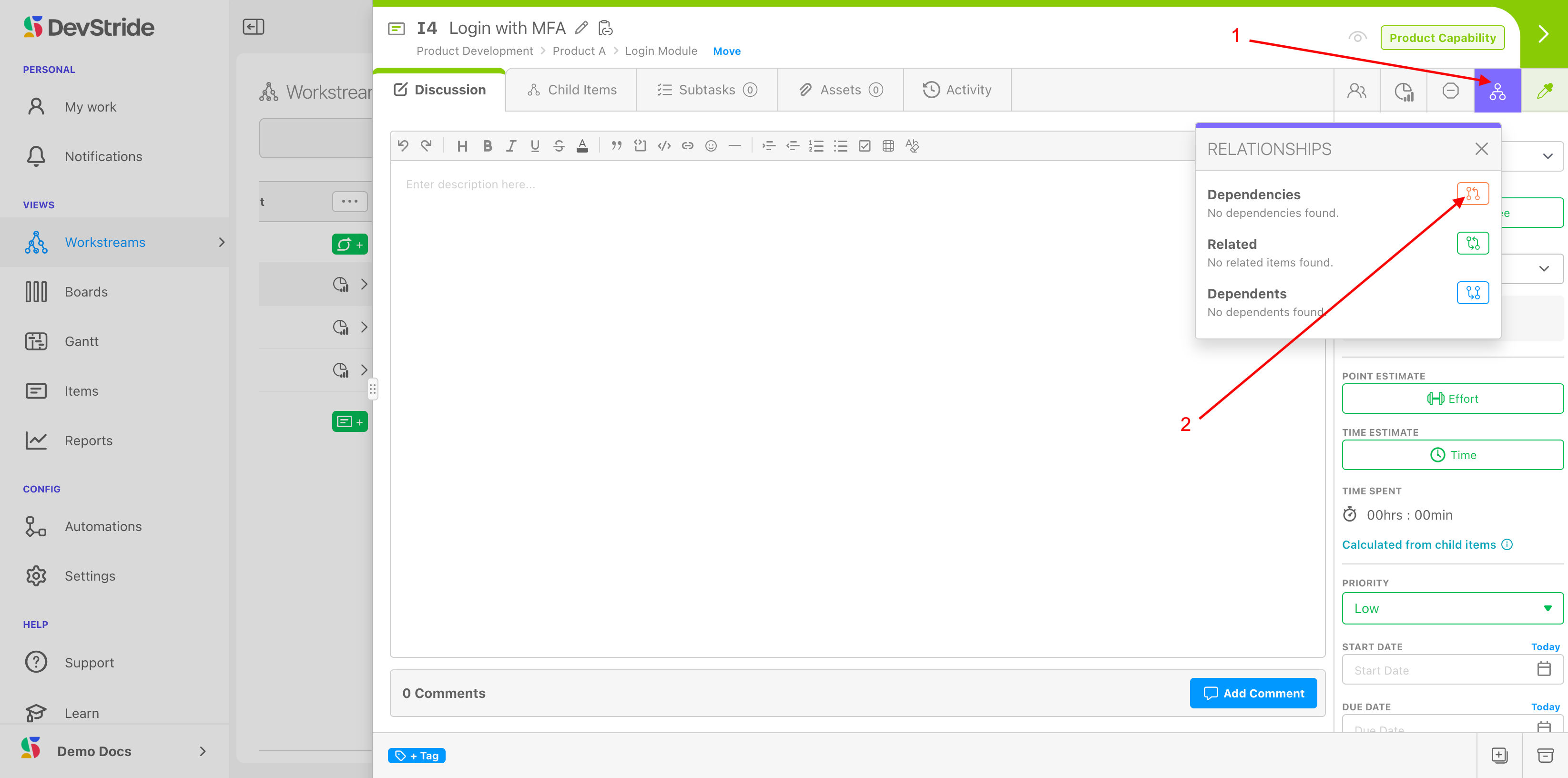
Manage Relationships opens the Relationships dialog with three sections:
| Section | Meaning |
|---|---|
| Dependencies | Items that must finish before this one can |
| Related | Items connected for reference, with no scheduling effect (a feature and its documentation item) |
| Dependents | Items waiting on this one |
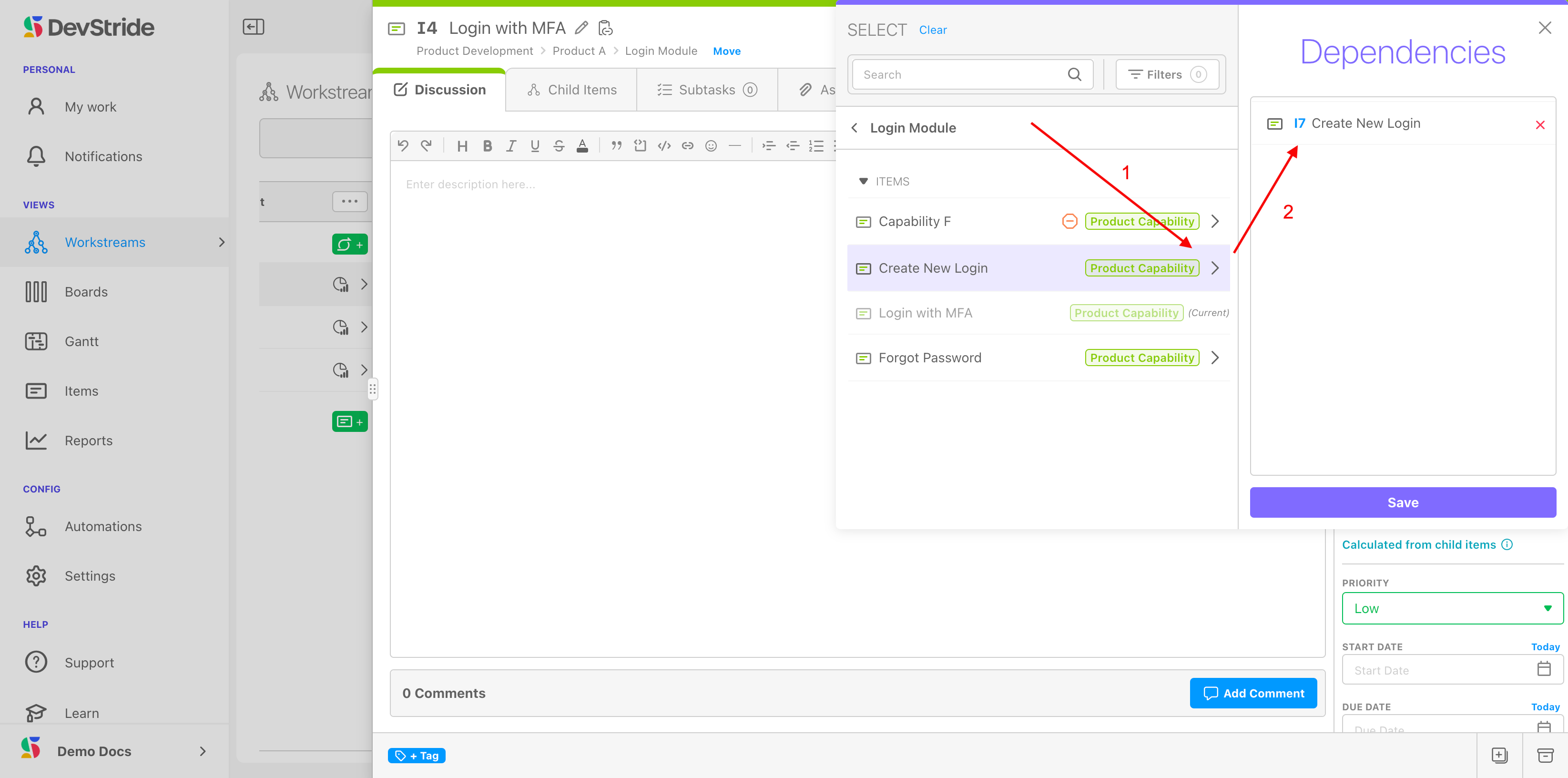
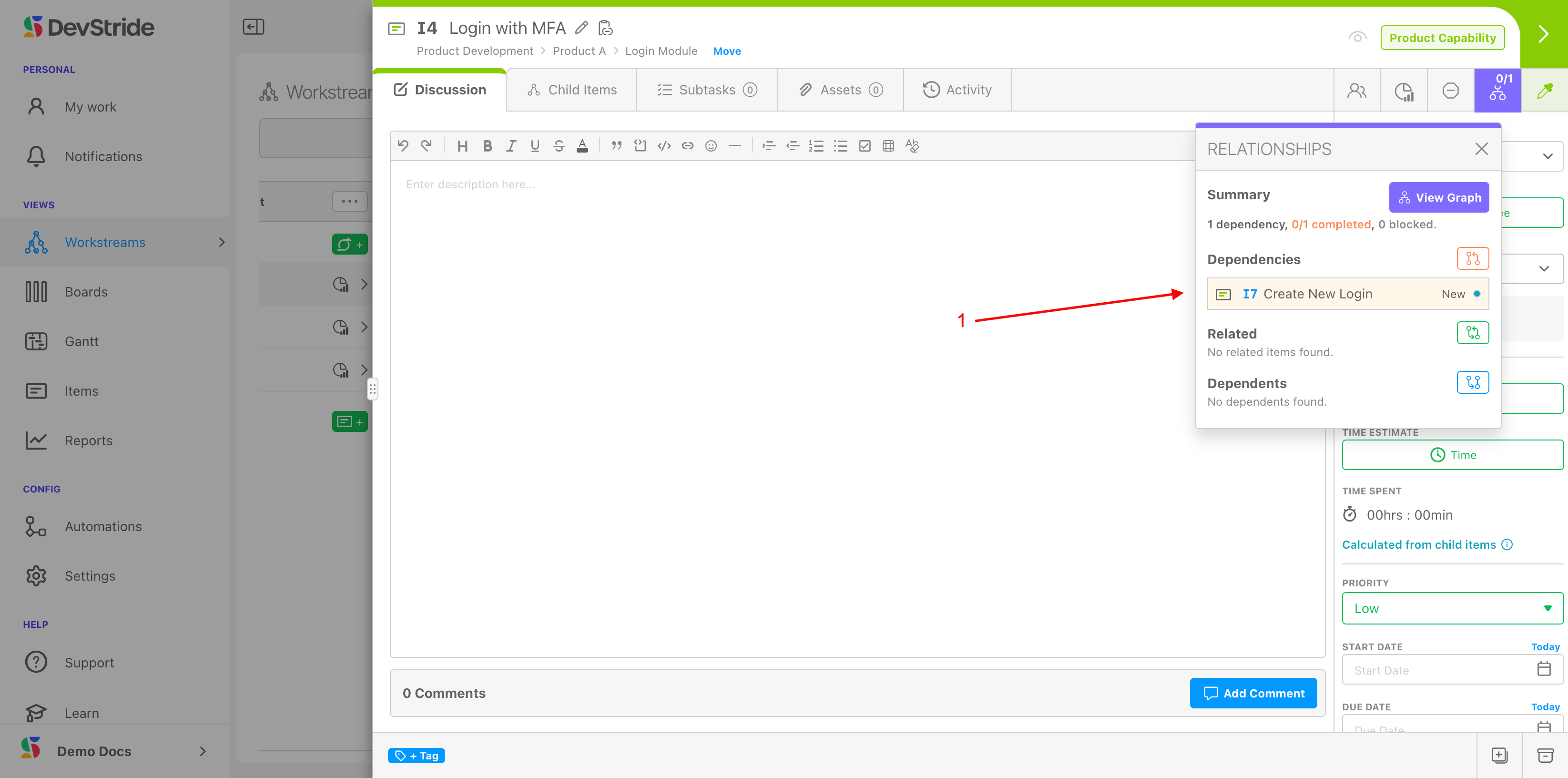
Click the section's add control, navigate the picker to the item, add it to the right pane, and Save. Listed items are links, so you can hop between related work. Once relationships exist, View Graph opens the Dependency Graph. The icon's badge shows done/total related items and turns red if any is blocked.
Create Linked Item#
When a follow-up or a bug needs to stay connected to the item you are reading, click Create Linked Item. The quick-add dialog opens with a Related link back to this item, the same team and board, and this item's parent as location, so the new item lands beside it. Change anything before saving. Requires permission to create items.
Colour#
Items inherit their type's badge colour. Choose Item Color overrides it for this one item. The colour is shared, not personal: everyone sees it.
Next, the right sidebar: Team through Status.