
Enabling Service Desk
Service Desk ships off. An administrator turns it on once for the organization. How to enable it, what it switches on, and what disabling does.
On this page
Service Desk is an opt-in module. Until an administrator enables it, the Service Desk nav item stays hidden and its settings don't apply. Turning it on is a single, reversible switch.
Who can enable it
Enabling and disabling Service Desk requires the Manage Service Desk Settings permission, included in the Owner, Admin, and Service desk agent roles. See Permissions.
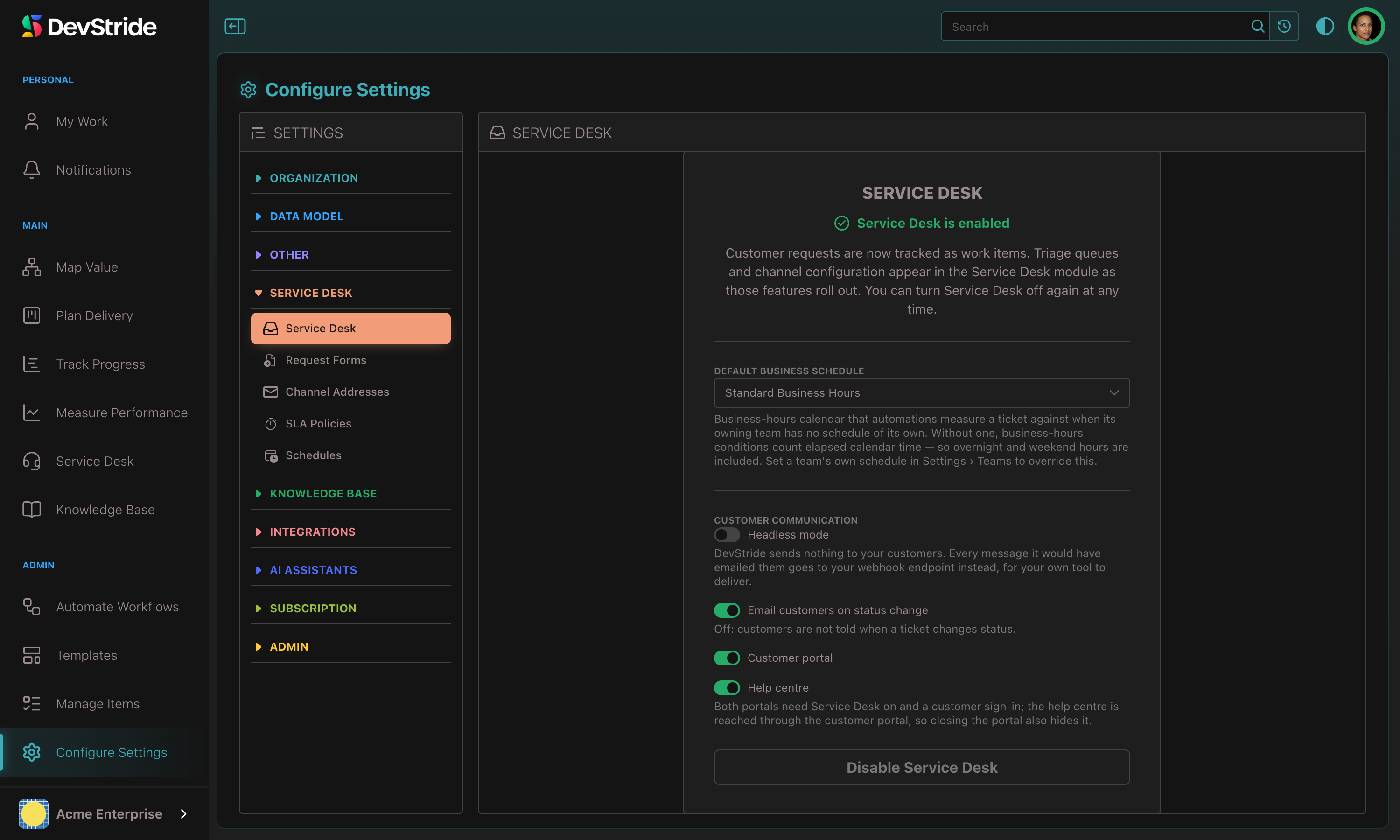
Turn it on#
- Open Settings from the bottom of the left sidebar.
- Select Service Desk.
- Click Enable Service Desk and confirm.
Enablement is instant; nobody needs to sign out. You can also enable it from the module itself: clicking Service Desk in the sidebar before it's on shows a "Service Desk isn't enabled" page with an Enable Service Desk button for administrators. Members without the permission see a note asking them to contact an administrator.
What enabling switches on#
| You get | Where |
|---|---|
| The Service Desk module with its Inbox, Held for review, SLA at risk, Rejected mail, Requesters, Companies, and Reports tabs (some tabs depend on your permissions) | Left sidebar |
| Request Forms, Schedules, SLA Policies, and the Default business schedule | Settings → Service Desk |
| Inbound addresses and Sending domains | Settings → Email |
| Ticket fields on work items: a Requester, a separate Customer description, and the Reply to customer / Internal note choice on comments | Any ticket |
| Two saved Inbox views: All open requests and Unassigned | Service Desk → Inbox |
| One automation, Auto-close solved tickets after 4 days, which emails the requester when it closes their ticket | Automate Workflows |
The seeded automation is an ordinary automation: edit the threshold, add conditions, pause it, or delete it. It runs immediately for a brand-new desk. If you re-enable a desk that already has tickets, it arrives paused so you can review it before it touches your backlog. See Time-Based Ticket Automations.
Nothing receives email yet. That starts when you create a channel address and forward your inbox to it: Email Channels & Setup.
Set the default business schedule#
The same Settings → Service Desk panel holds the Default business schedule. Pick one of your schedules here and every ticket whose team has no schedule of its own is measured against it by business-hours automations. Leave it empty and business-hours conditions count calendar time, nights and weekends included. If your organization has exactly one schedule, it is adopted as the default automatically.
Control what reaches your customers#
The same panel's Customer communication group holds these switches:
| Switch | Default | Off / on means |
|---|---|---|
| Headless mode | Off | On: DevStride sends nothing to your customers; each message goes to your webhook endpoint for your own tool to send. |
| Email customers on status change | On | Off: customers are not told when their request changes status. |
| Show the replying staff member's name in emails | On | On: reply emails come from the staff member who replied, for example Jane Doe (Acme Support), and say who replied. Off: they come from your desk name only. |
| Send roadmap release updates automatically | Off | Off: the plan's owner approves the wording of each release update to a linked ticket before it is sent. On: updates go out as soon as the release is live, without approval; DevStride asks you to confirm before turning it on. |
| Share new ticket files with the customer | Off | Off: every file added to a ticket starts private until someone shares it. On: a file or link your team adds to a ticket starts shared and shows on the customer's portal ticket straight away; DevStride asks you to confirm before turning it on. |
| Customer portal | On | Off: the customer portal closes and portal links disappear. |
| Only signed-in customers can submit requests | Off | On: customers must sign in to the portal before they can submit; forms marked public keep their open link. |
| Help centre | On | Off: the portal's knowledge base closes. |
See Headless Mode and Customer Switches for what each one closes.
Turn it off#
On Settings → Service Desk, click Disable Service Desk and confirm. Disabling is reversible: tickets, requesters, companies, conversations, and each company's portal settings are kept, and re-enabling restores everything. While it's off:
- The Service Desk module is hidden and inbound email to your channel addresses stops creating tickets.
- Someone who emails a channel address gets a short automatic note saying the address is not accepting messages, at most once a day per sender. No note goes to auto-replies, bounces, mailing lists, or blocked senders.
- Messages on the Held for review tab can't be recovered until you switch the desk back on.
- The customer portal goes offline immediately: customers can't open it or sign in, anyone signed in is turned away on their next action, and pending sign-in links stop working. Listed request forms close to customers too. See Customer Support Portal.
To pause one address, don't disable the module
Disabling stops intake for every address. To retire a single support address while the rest keep running, remove or edit that channel address instead: Email Channels & Setup.